Updating SHIPIT
SHIPIT checks for updates by itself and installs nothing without you. A new build waits in the sidebar until you click it.
-
01SHIPIT checks by itself
Every hour SHIPIT quietly checks for a new build. No window pops up.
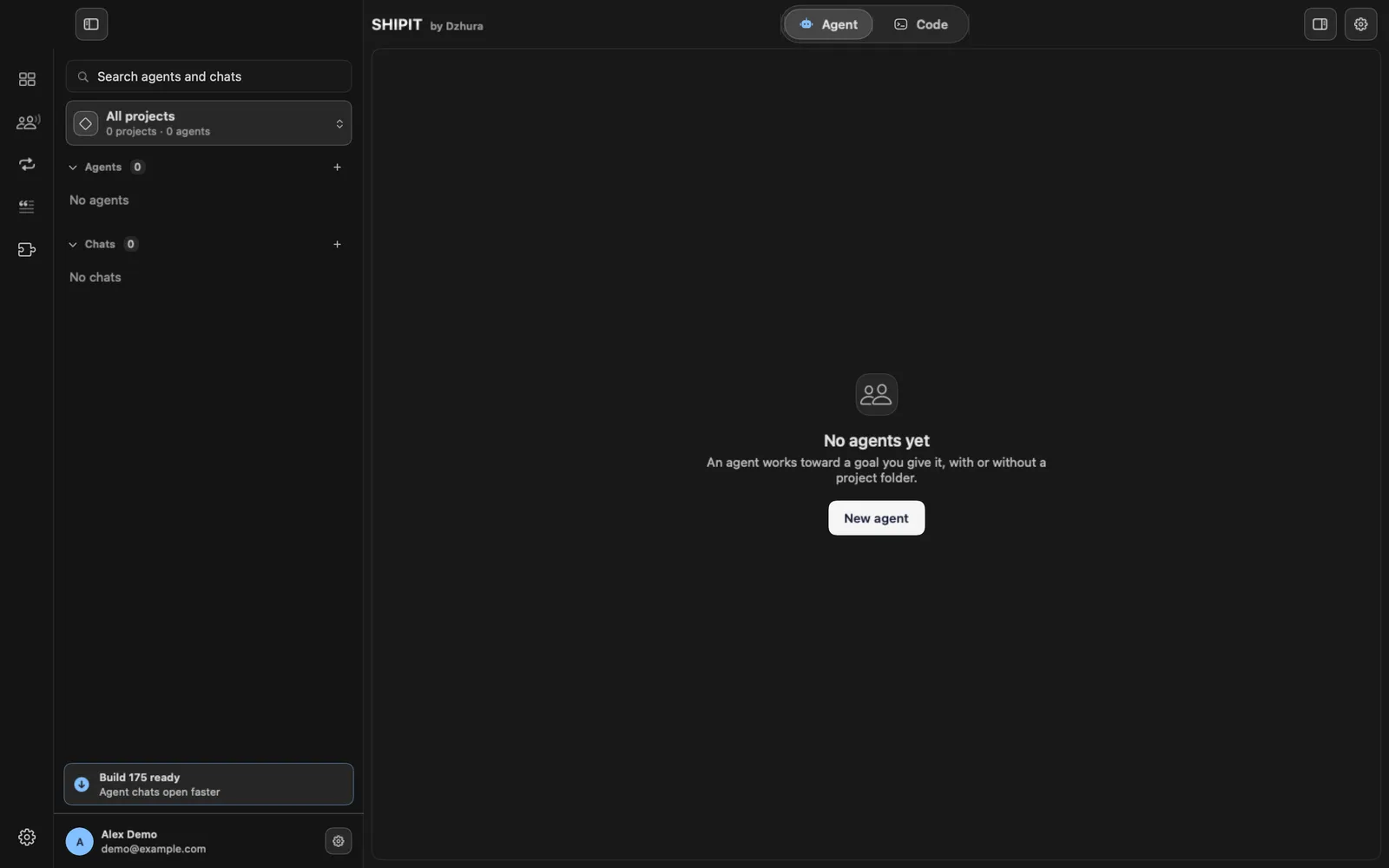
When an update is ready, a pill with the build number shows in the sidebar above your account, for example Build 168 ready.
-
02Install when it suits you
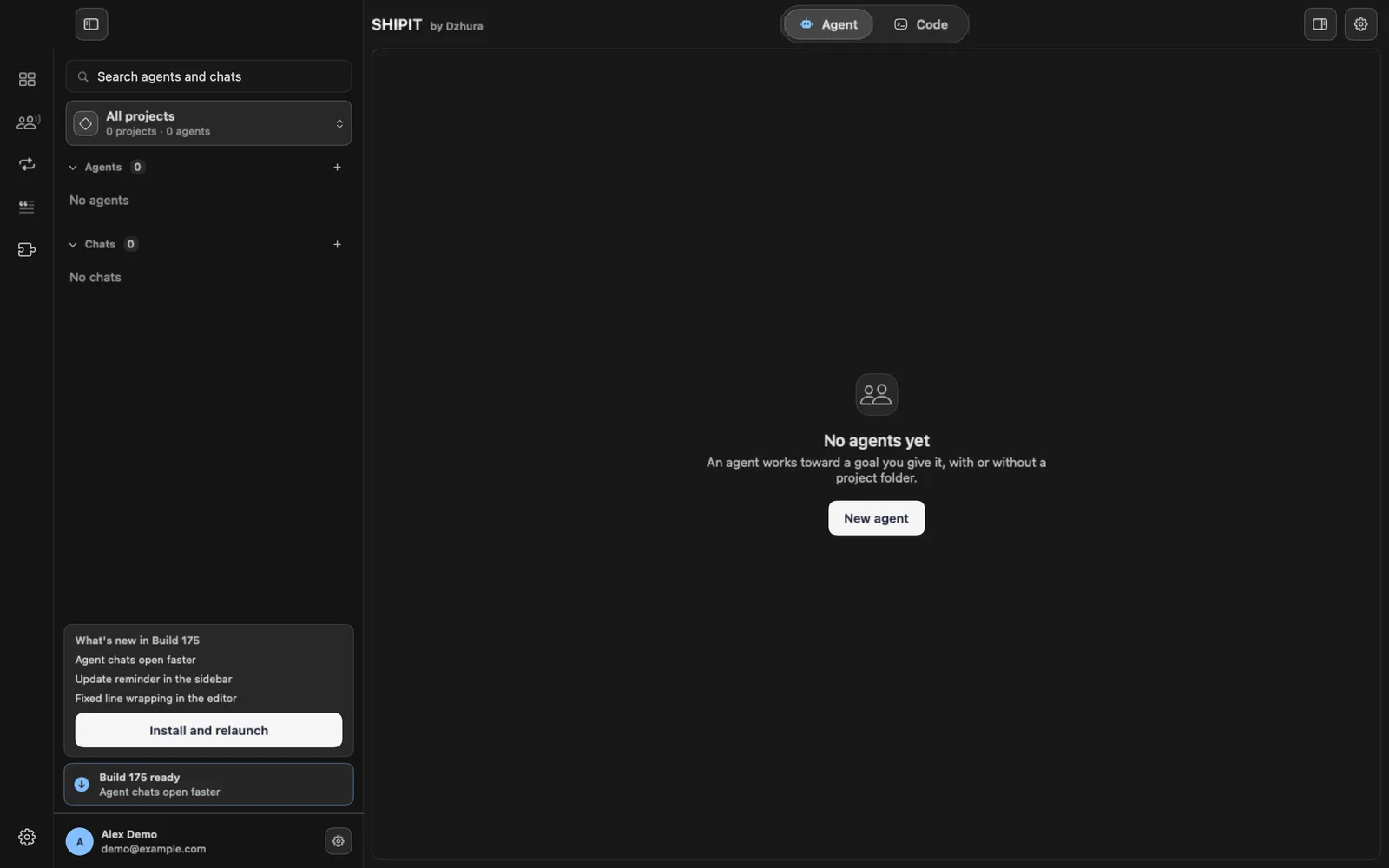
Click the pill. You see a short note on what is new and the Install and relaunch button. SHIPIT installs the build and opens again.
If agents are working, SHIPIT asks before it stops them. Put it off and the pill stays until you install.
-
03Check by hand
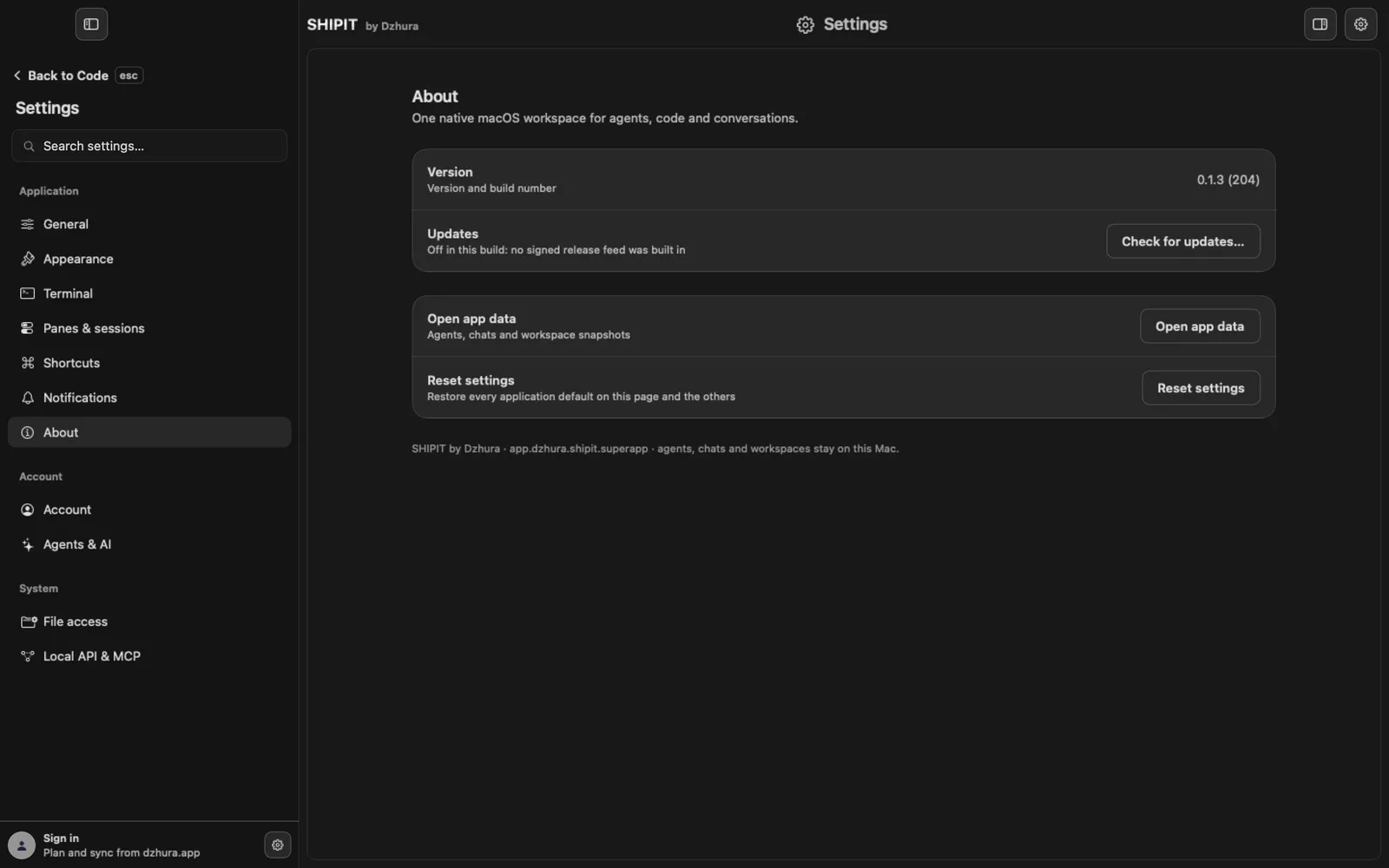
Open Settings → About and click Check for updates…. The SHIPIT menu in the macOS menu bar has Check for Updates… too.
If an update is already waiting, the row says Update ready with an Install… button.
-
04Find your version
On the same page the Version row shows the version and build number. It helps when you report a problem.
-
05Automatic checks
The Check for updates automatically switch on the About page turns the hourly checks on. Each check sends the app version and your IP address to the update server.
Turn it off and check by hand whenever you like.
Tips
- An update never interrupts your work: it waits until you click.
- Let your agents finish the current task before you update.
Questions
What does an update check send?
Only the app version and your IP address. Agents, chats and workspaces stay on this Mac.
There is no pill, but I know a new build is out.
Click Check for updates… in About so you do not wait for the next check.