Language and theme
SHIPIT speaks English or Ukrainian and has two dark themes and one light theme. Each one changes with a single click.
-
01Pick a language on first launch
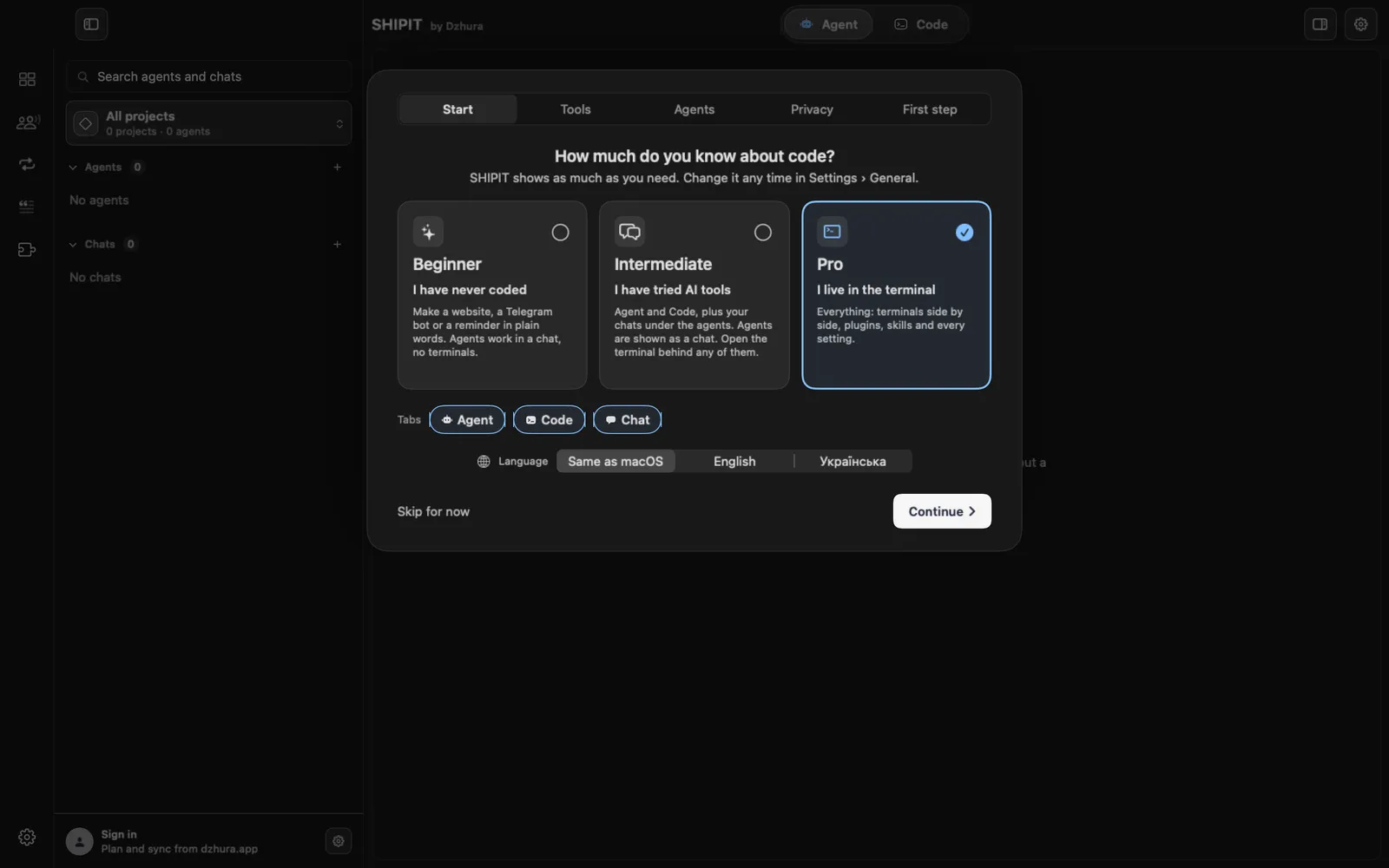
The first setup step has a Language switch at the bottom: Same as macOS, English or Українська.
The text on screen changes right away, before you go on.
-
02Change the language later
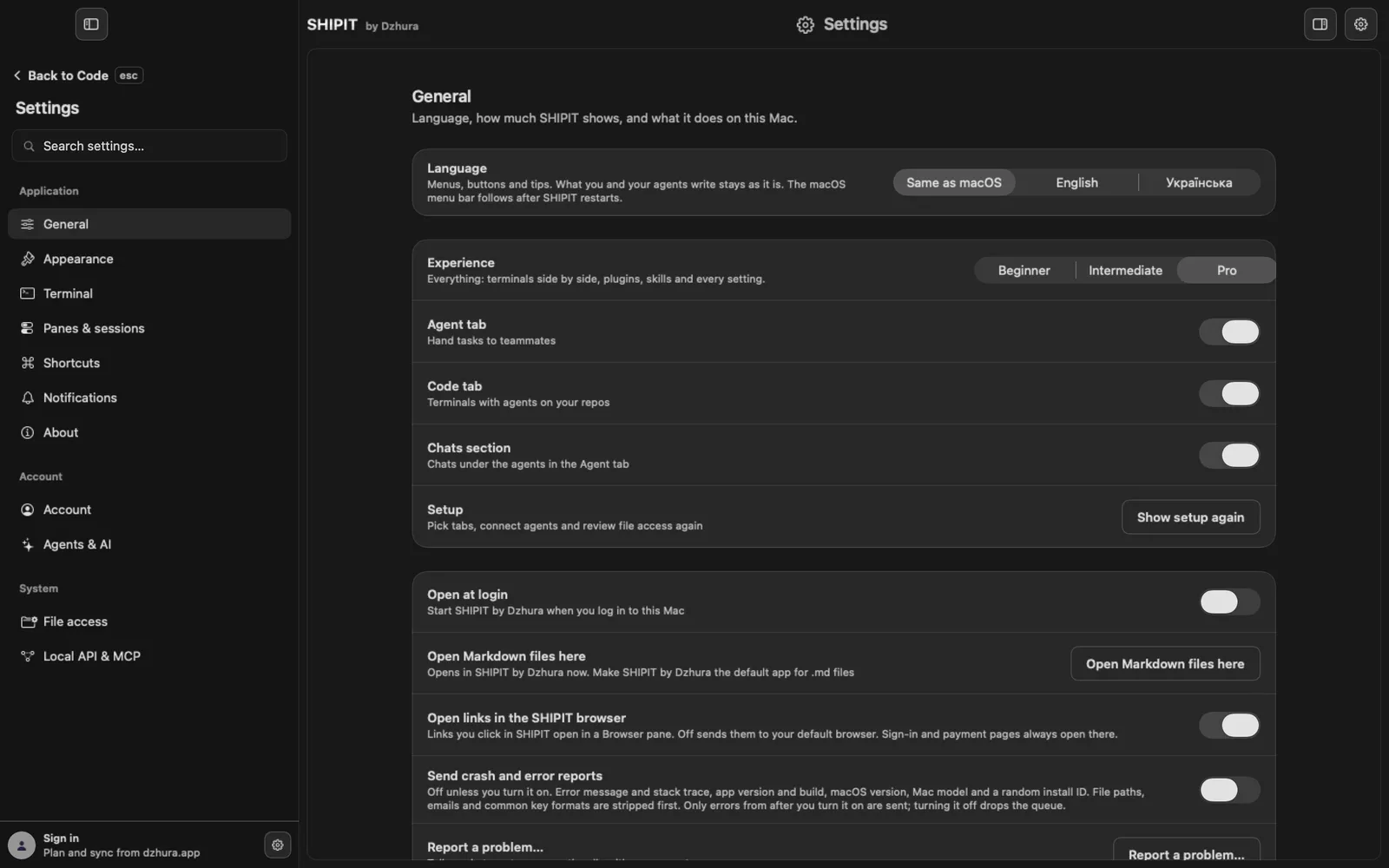
Open Settings → General and choose in the Language row. Menus, buttons and tips switch at once, no restart needed.
What you and your agents write stays as it is. The macOS menu bar follows after SHIPIT restarts.
-
03Pick a theme
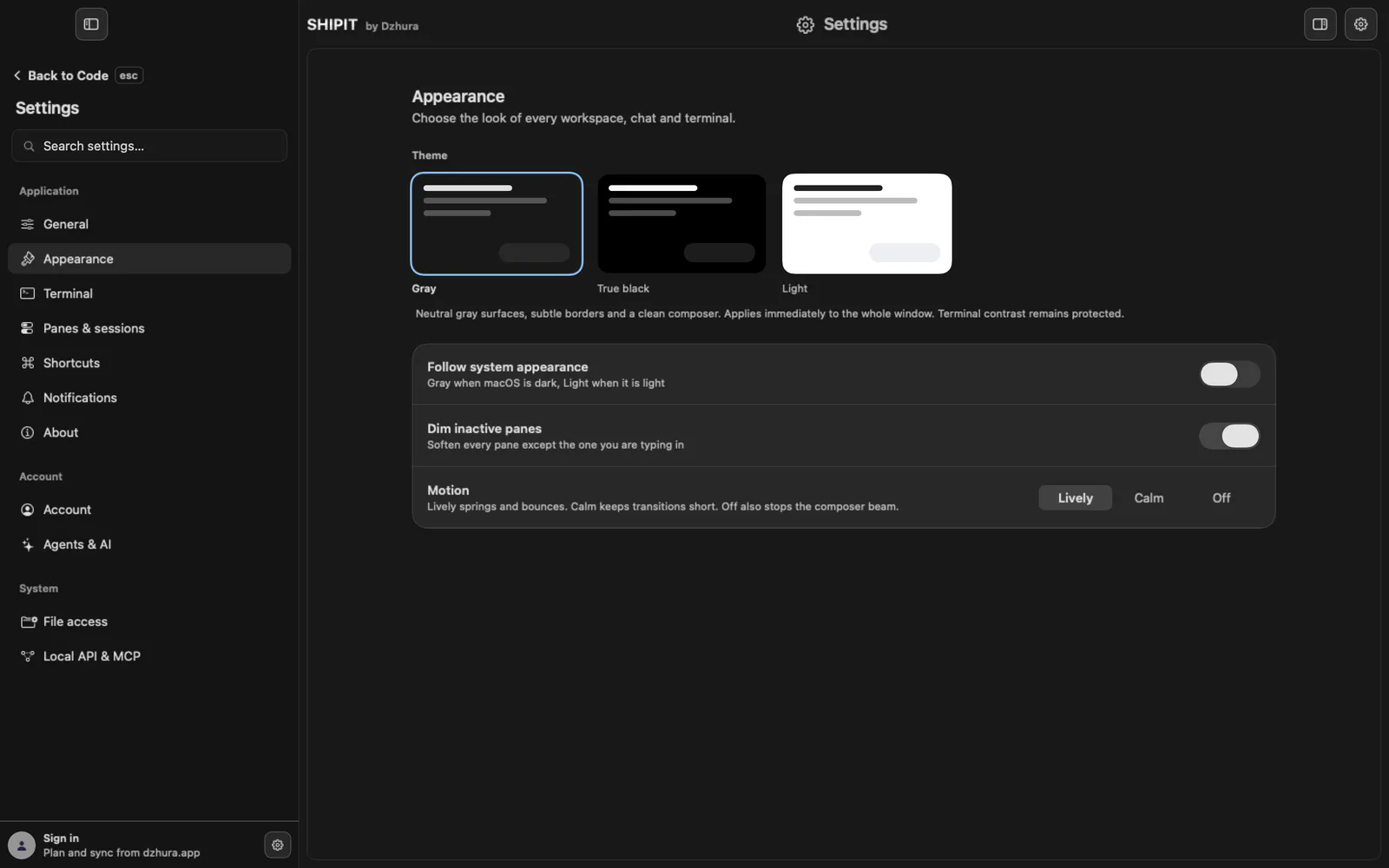
Settings → Appearance has three Theme tiles: Gray and True black are dark, Light is light.
The theme applies immediately to the whole window. Terminal contrast stays protected in every theme.
-
04Let the theme follow macOS
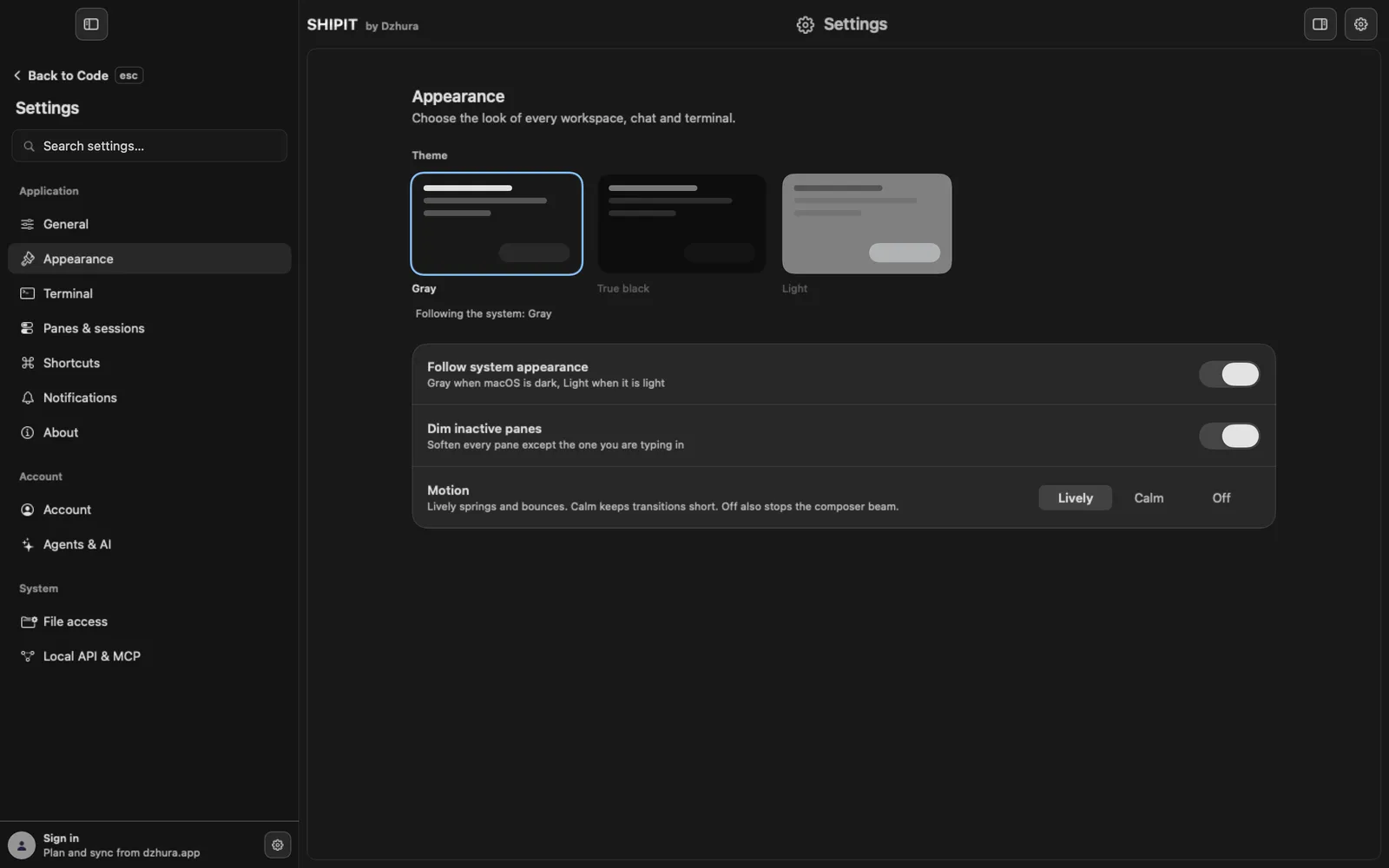
Turn on Follow system appearance. SHIPIT then uses Gray when macOS is dark and Light when it is light, and switches together with the system.
-
05Make the screen calmer
On the same page, Dim inactive panes keeps only the pane you are typing in bright.
The Motion row sets how much moves: Lively, Calm or Off.
Tips
- Same as macOS takes the system language, so SHIPIT matches the rest of your Mac.
- For long evenings try True black: the darkest background.
Questions
Why is the menu bar at the top of the screen still in the old language?
The macOS menu bar reads the language only at launch. Quit SHIPIT and open it again.
Will SHIPIT translate my chats?
No. The interface language does not touch what you and your agents write.