Install SHIPIT and open it for the first time
In a few minutes SHIPIT sits in Applications and opens a short setup. You need a Mac with macOS 14 or later.
-
01Download SHIPIT from dzhura.app
Open dzhura.app and click Get SHIPIT. The button leads to the file
SHIPIT.dmg.TipSHIPIT runs on macOS 14 or later.
-
02Sign in or create an account
The file is handed out only after you sign in. If you are not signed in yet, the site opens the account page. It is in Ukrainian for now: enter your email and a password of at least 8 characters, then confirm the email with the link in the letter.
Once the email is confirmed, the download starts on its own.
-
03Move SHIPIT to Applications
Open the downloaded
SHIPIT.dmg. A disk window called SHIPIT by Dzhura appears: it holds the app and a link to the Applications folder. Drag the app onto Applications.When the copy finishes, you can eject the disk.
-
04Open SHIPIT for the first time
Launch SHIPIT from the Applications folder. On the first launch macOS asks whether to open an app downloaded from the internet. Confirm that you want to open it.
SHIPIT is signed and notarized by Apple, so this question comes up only once.
-
05Setup opens on its own
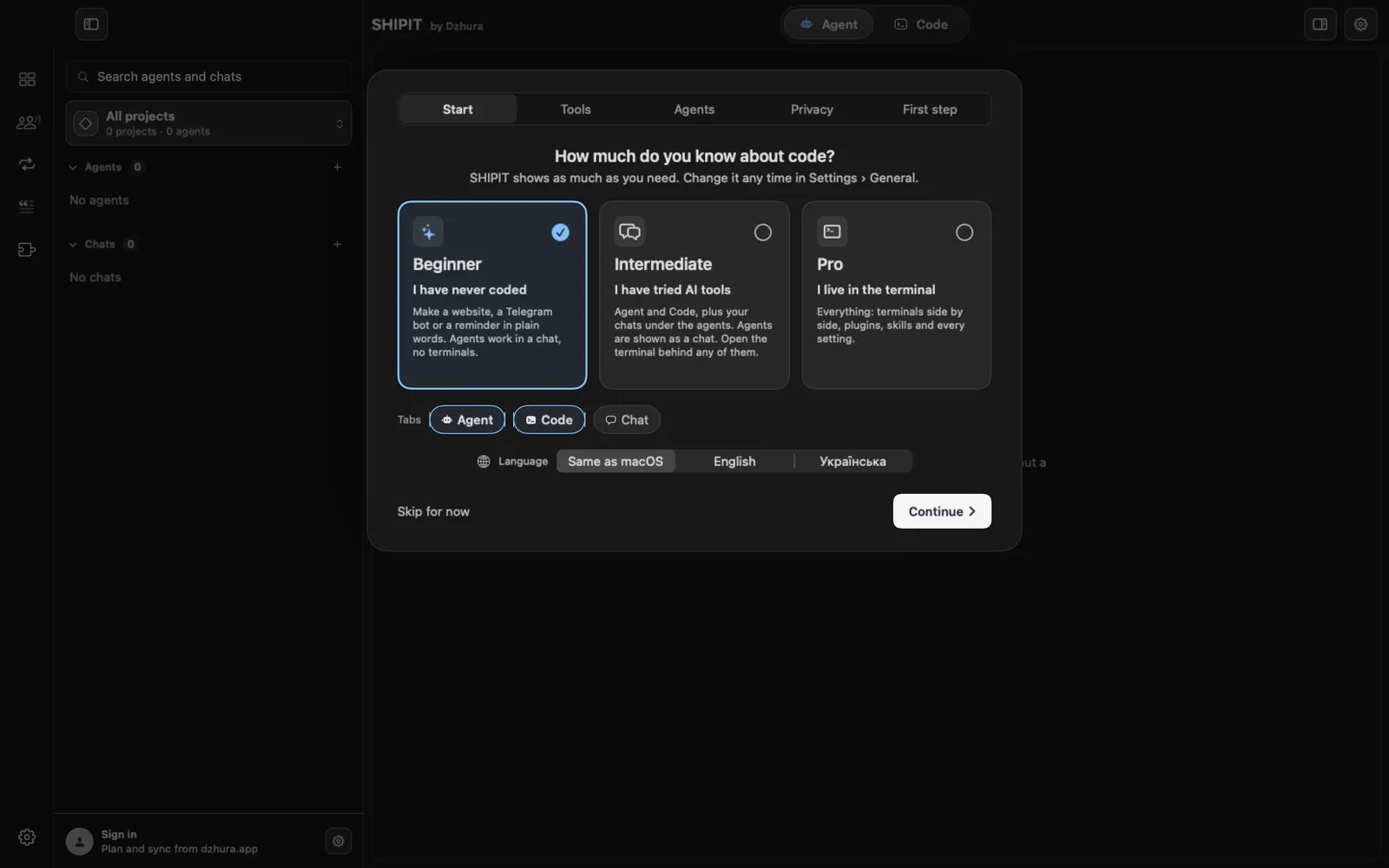
Right after launch SHIPIT shows a short setup in five steps: Start, Tools, Agents, Privacy and First step. It takes a few minutes, and any step can wait with Skip for now.
Tips
- Run SHIPIT from the Applications folder, not straight from the .dmg disk.
- The download needs a confirmed email: without it the site does not hand out the file.
- What each setup step does is in the next guide.
Questions
Do I need an account?
To download SHIPIT, yes: the site hands out the file after you sign in with a confirmed email.
Which macOS do I need?
macOS 14 or later.
Is it safe to open an app from the internet?
SHIPIT is signed and notarized by Apple. macOS checks this on the first launch.
Next
- First launch: setup in 5 stepsFive short steps, after which SHIPIT knows your level, your language and the rules for agents, and you have a first project under way.
- Privacy and access: what SHIPIT sees and what agents may doYour work stays yours. Here is what SHIPIT sends, how to set the rules for agents and why macOS asks about folder access.