Terminal settings: font, scrollback, keys
One settings page applies to every pane. In a minute the terminal reads the way you like.
-
01Open Terminal
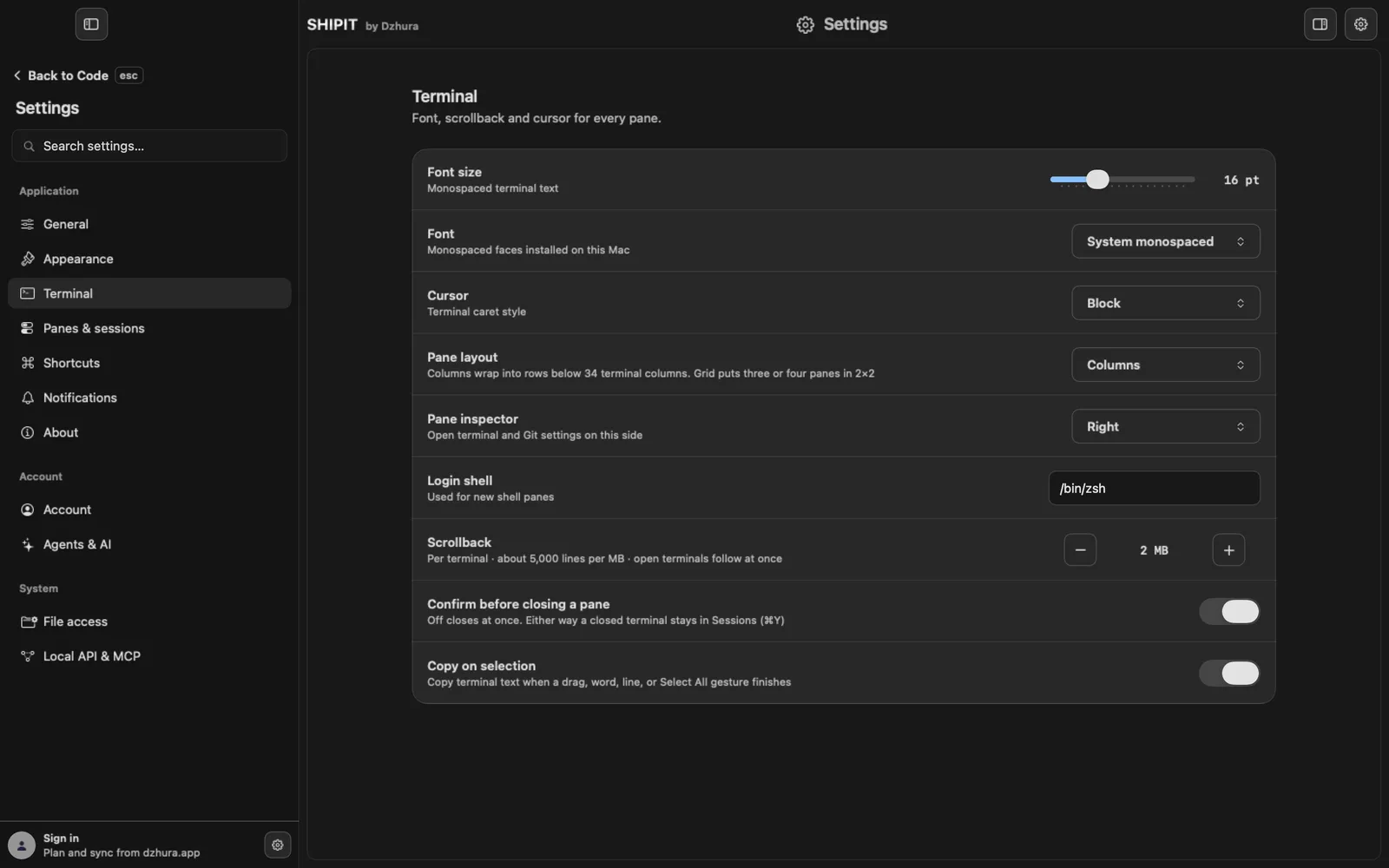
⌘,opens Settings, then Terminal. Everything here applies to every pane. -
02Font size
The Font size slider: 11 to 28 pt, 16 by default. From the keyboard:
⌘=bigger,⌘-smaller,⌘0back to 16. -
03Font and cursor
Font: System monospaced or any monospaced font installed on this Mac. Cursor: Block (the default), Bar or Underline.
-
04Pane layout and inspector
Pane layout: Columns (the default) sit side by side and wrap into rows once a terminal gets narrower than 34 columns. Grid 2×2 sets the panes in a two by two grid.
Pane inspector: Right or Left, the side where pane settings and Git open.
-
05Login shell
Login shell decides what runs in a new shell pane. The default is
/bin/zsh. Change it only if you know why. -
06Scrollback
Scrollback sets how much output each terminal keeps: 1 to 20 MB, about 5,000 lines per megabyte. The default is 2 MB, roughly 10,000 lines. Open terminals pick up the change at once.
-
07Closing and copying
Confirm before closing a pane: SHIPIT asks before a pane closes. Copy on selection: text is copied as soon as you select it. Both are on by default.
TipEven without the confirmation, a closed terminal stays in Sessions (⌘Y).
-
08Terminal keys
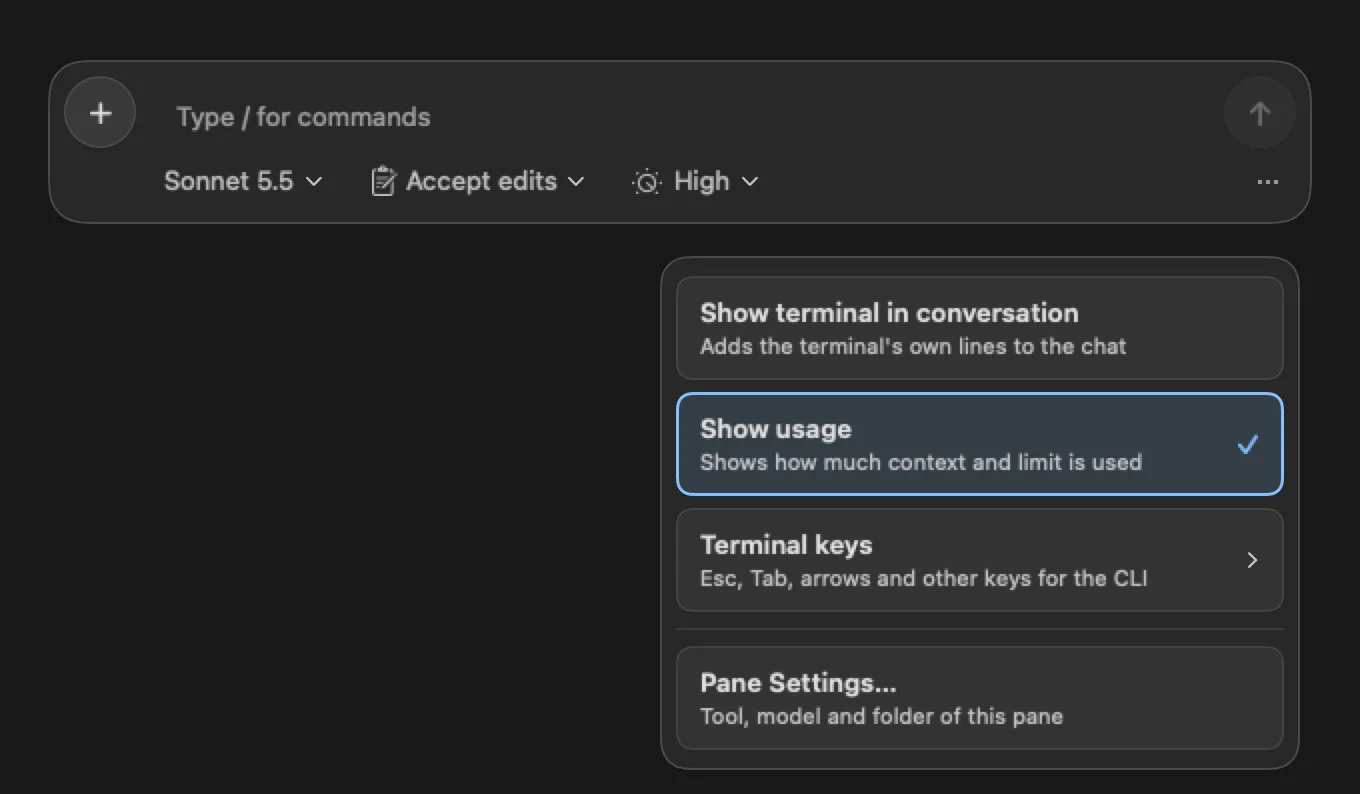
In an agent conversation pane on the Pro level, the … button at the right of the composer opens Terminal keys: Enter, Esc, the arrows, Tab and Ctrl+C (Interrupt the process). They go straight to the agent's CLI when you need to answer its menu or stop it.
TipWhile the pane is not running, these keys are off.
Tips
- Reading long logs? Raise scrollback to 5-10 MB for every terminal.
- Turned Copy on selection off? ⌘C copies the selection as usual.
Questions
Does ⌘= zoom the window?
No, only the terminal text. The window stays as it was.
Where are Terminal keys on the Beginner level?
The three-dot menu in the composer exists only on the Pro level. Change the level in Settings › General.
Next
- SHIPIT keyboard shortcutsThese are the keys worth knowing. The full list is always one click away in Settings.
- Changes and Git: what the agent actually changedThe Git panel shows the branch, the changed files and the changes themselves in the active pane's folder. From there you can also send the branch to GitHub.