Sessions: bring terminals back after a relaunch
A closed terminal does not disappear. After a relaunch SHIPIT asks what to bring back, and the rest waits in Sessions.
-
01The “Restore sessions?” window
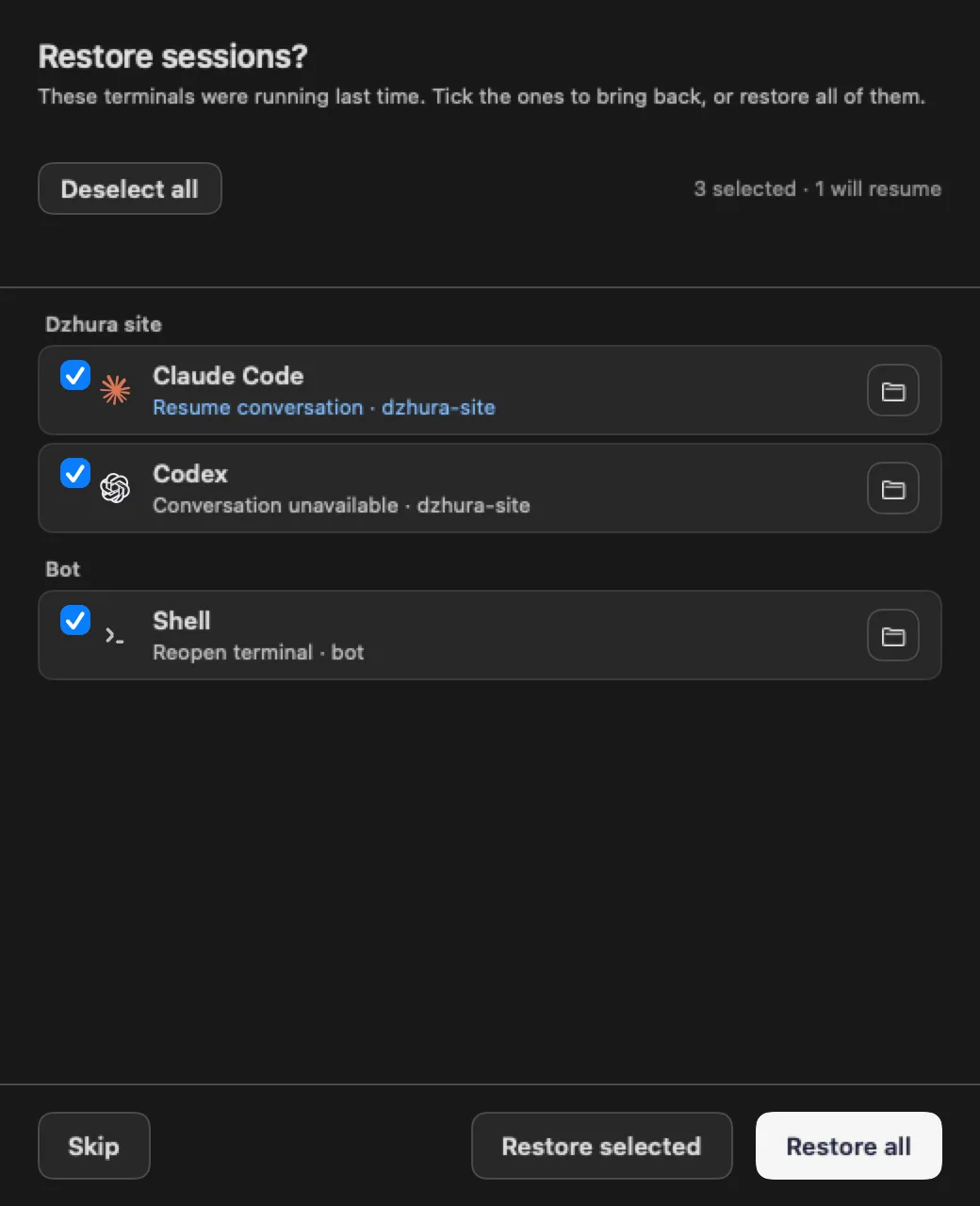
When SHIPIT starts again it lists the terminals that were running last time, grouped by workspace. Each one says what will happen.
Resume conversation: the agent returns to the same conversation. Conversation unavailable: no saved conversation was found, so it cannot be resumed. Reopen terminal: a plain shell simply opens in its folder.
-
02Pick what to bring back
The checkboxes decide what is restored. Deselect all clears every tick, Select all puts them back.
-
03Restore or skip
Restore all starts everything on the list, Restore selected only the ticked rows. Skip leaves the terminals stopped: start them later from Sessions or from the pane menu.
If only plain shells without a conversation were open last time, the window does not appear and they come back on their own.
TipSleeping panes are not listed here: they stay asleep until you press the button on the pane itself.
-
04Sessions in the sidebar
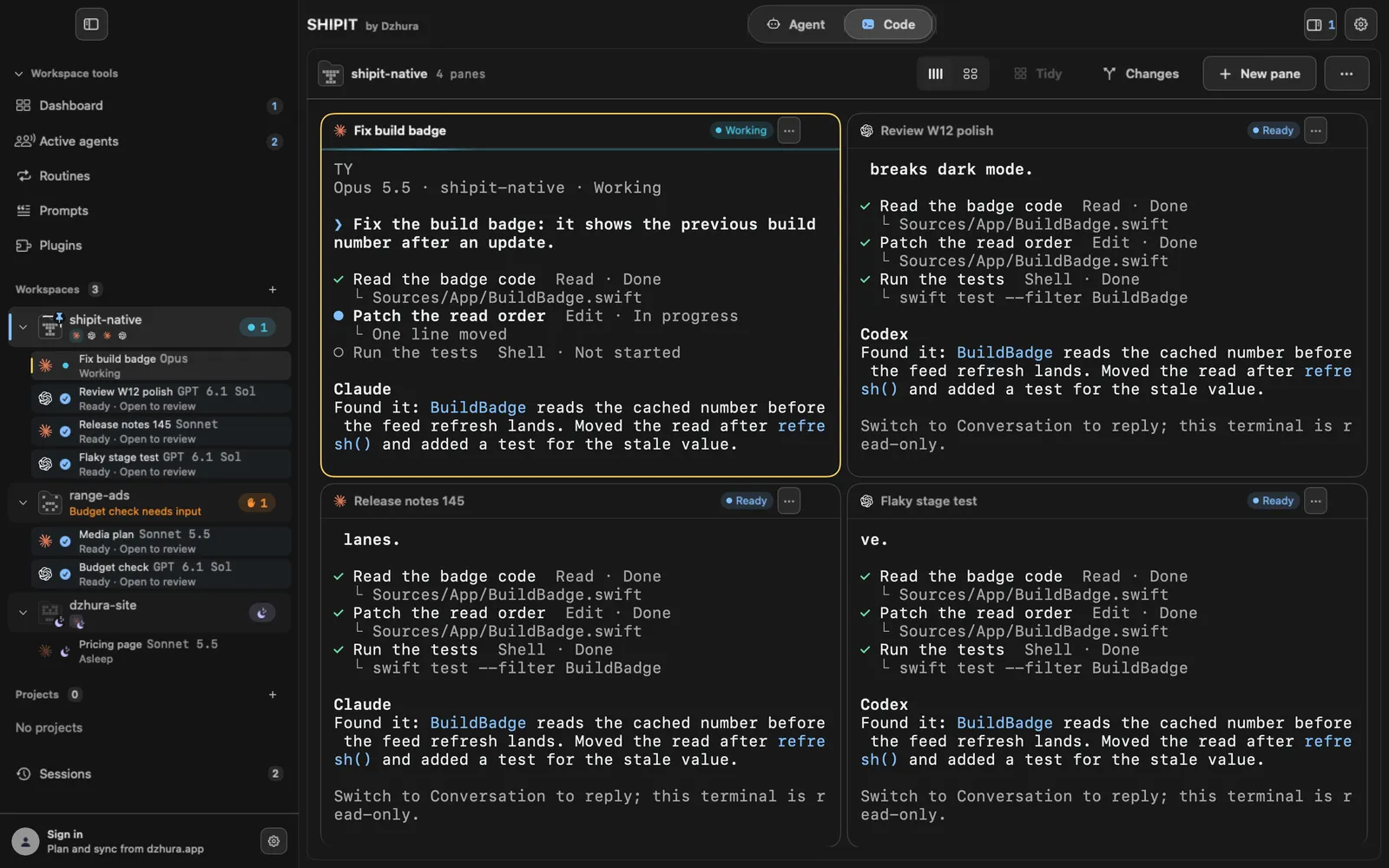
At the bottom of the Code sidebar there is a Sessions row; the number next to it counts the closed terminals waiting there. The same window opens with
⌘Yand with Sessions… in the workspace menu. -
05Find a terminal and bring it back
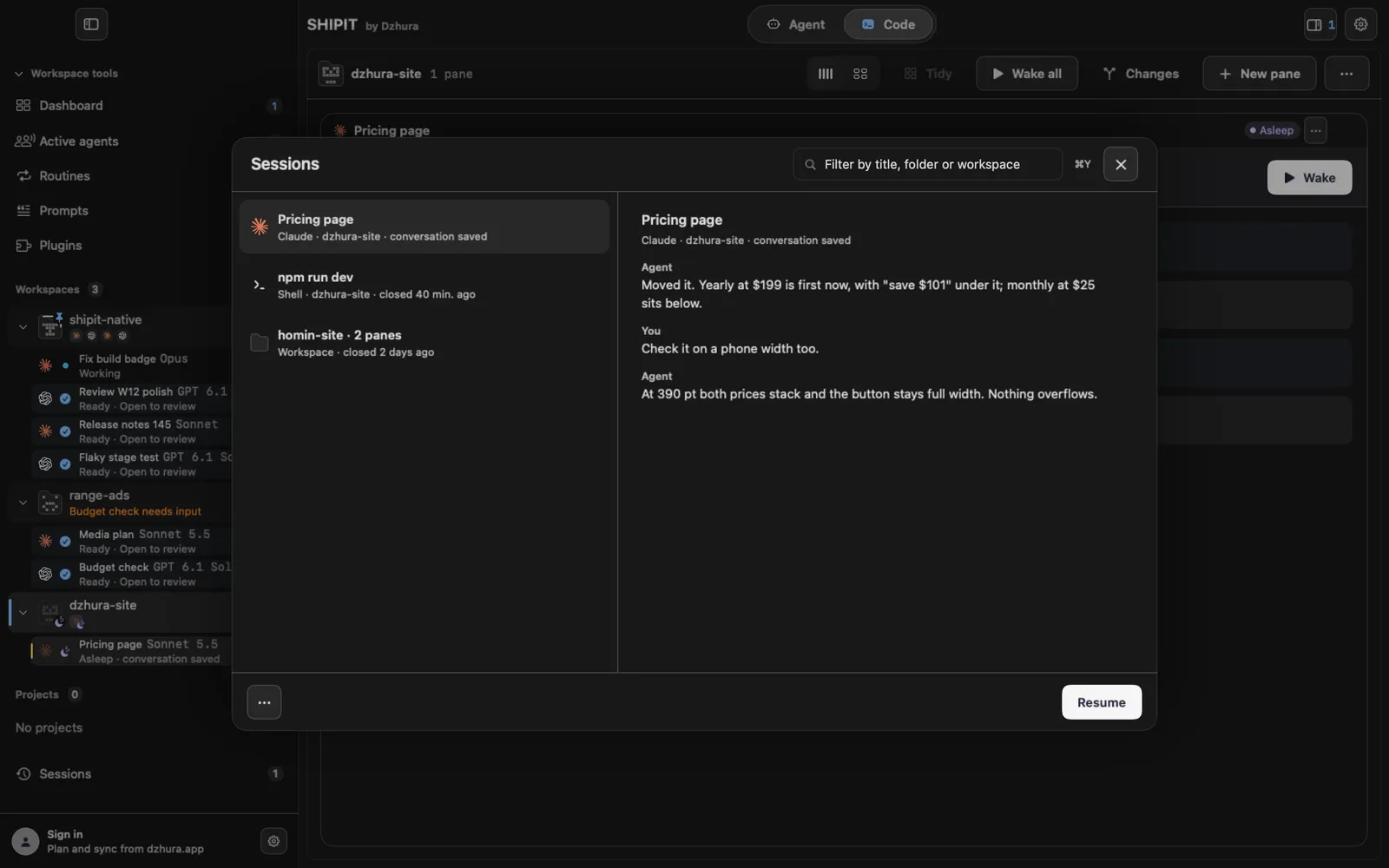
Everything is one list: first stopped terminals that can resume in place, then closed terminals, then closed workspaces. The field at the top filters by title, folder or workspace, and the saved conversation shows on the right.
The button at the bottom follows the row: Resume for a saved conversation, Start for a pane without one, Reopen for a closed one. Return presses it.
TipThe three-dot button at the bottom holds Resume all not running and Clear closed.
-
06What else comes back on launch
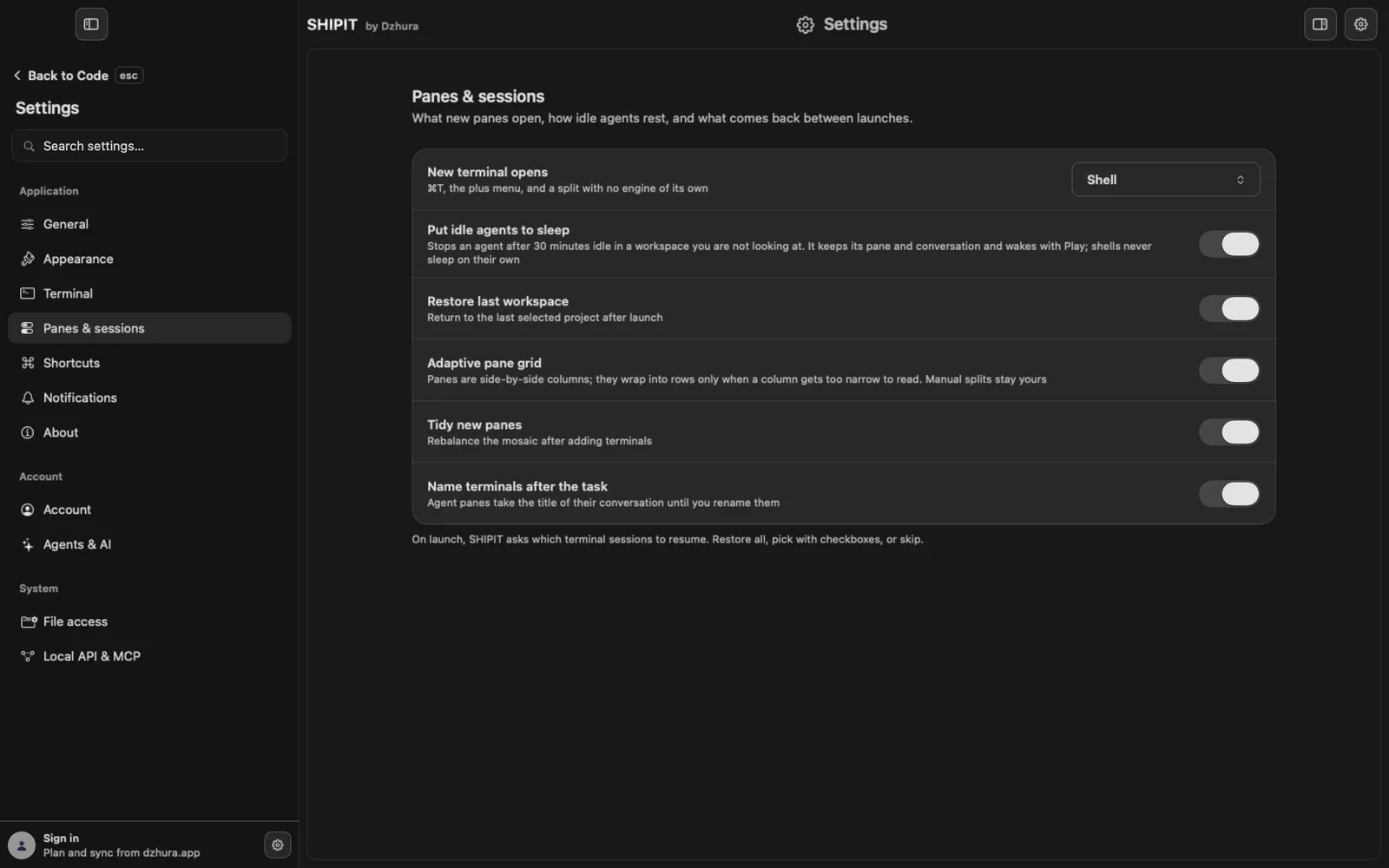
In
Settings › Panes & sessionsthe switch Restore last workspace takes you back to the project you had open last. A closed workspace is not deleted either: it waits in Sessions with its panes, layout and conversations.⇧⌘Treopens the last closed terminal at once.
Tips
- Closing a terminal is safe: it stays in Sessions until you remove it yourself.
- A row's menu in Sessions has Remove from history. A closed workspace also has Delete permanently; the files on disk stay.
Questions
Why did one conversation come back and another start fresh?
Only a conversation SHIPIT managed to save can be resumed. A row marked Conversation unavailable has none.
I pressed Skip. Are the terminals gone?
No. They are stopped and sit at the top of Sessions (⌘Y), ready to resume.
Next
- Sleeping panes: free the Mac, keep the conversationSleep stops the agent's process, but the pane and the conversation stay where they are. One button brings the agent back to the same conversation.
- Bookmarks: a workspace the way you left itA bookmark remembers a workspace: panes, layout, colour and conversations. It keeps working even after the workspace itself is closed.
- SHIPIT keyboard shortcutsThese are the keys worth knowing. The full list is always one click away in Settings.