Models and effort
You can set model and effort per chat, per teammate and as defaults. What each model is good at is explained on the Models page.
-
01Pick a model
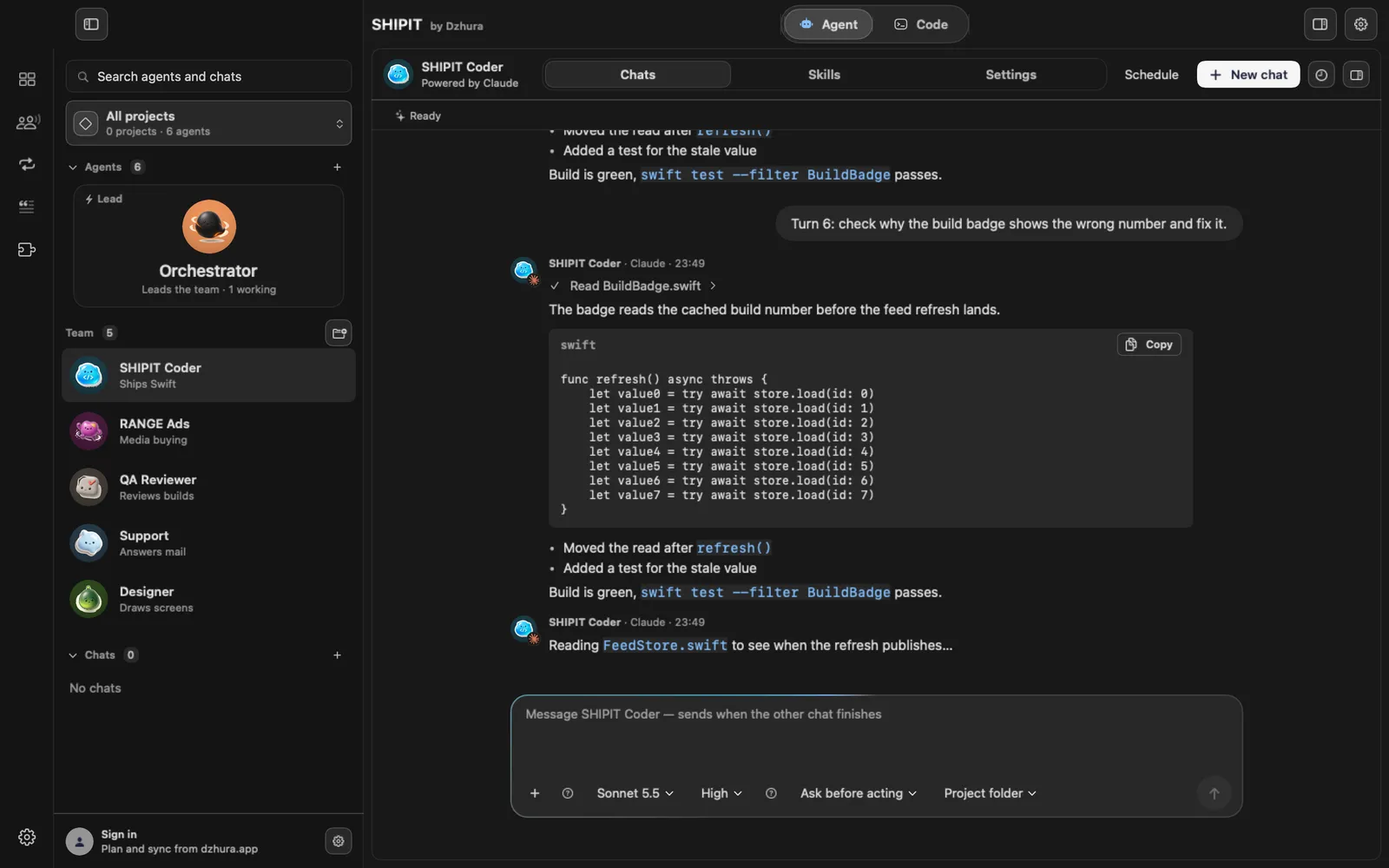
Click the pill with the model name in the field. The list shows the models of the installed engines, with the engine under each name. Refresh models reloads the list.
-
02Set the effort
The next pill is effort: how deeply the model reasons. The levels depend on the model, for example Medium, High, Extra high.
If the model manages reasoning on its own, the pill shows Auto.
-
03Defaults for new agents
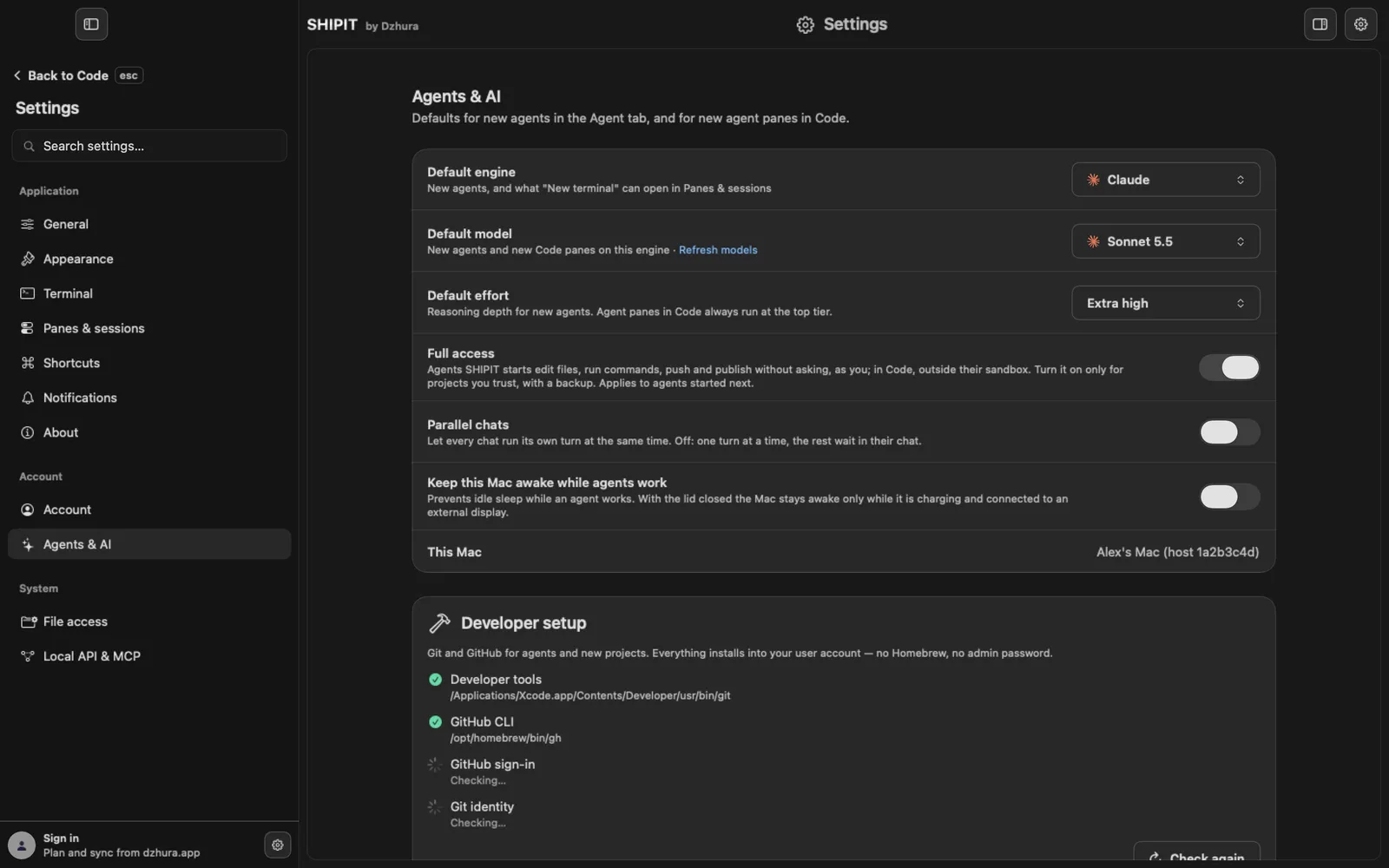
Settings, Agents & AI: Default engine, Default model and Default effort. New agents start from these.
Agent panes in Code always run at the top tier.
-
04One teammate's model
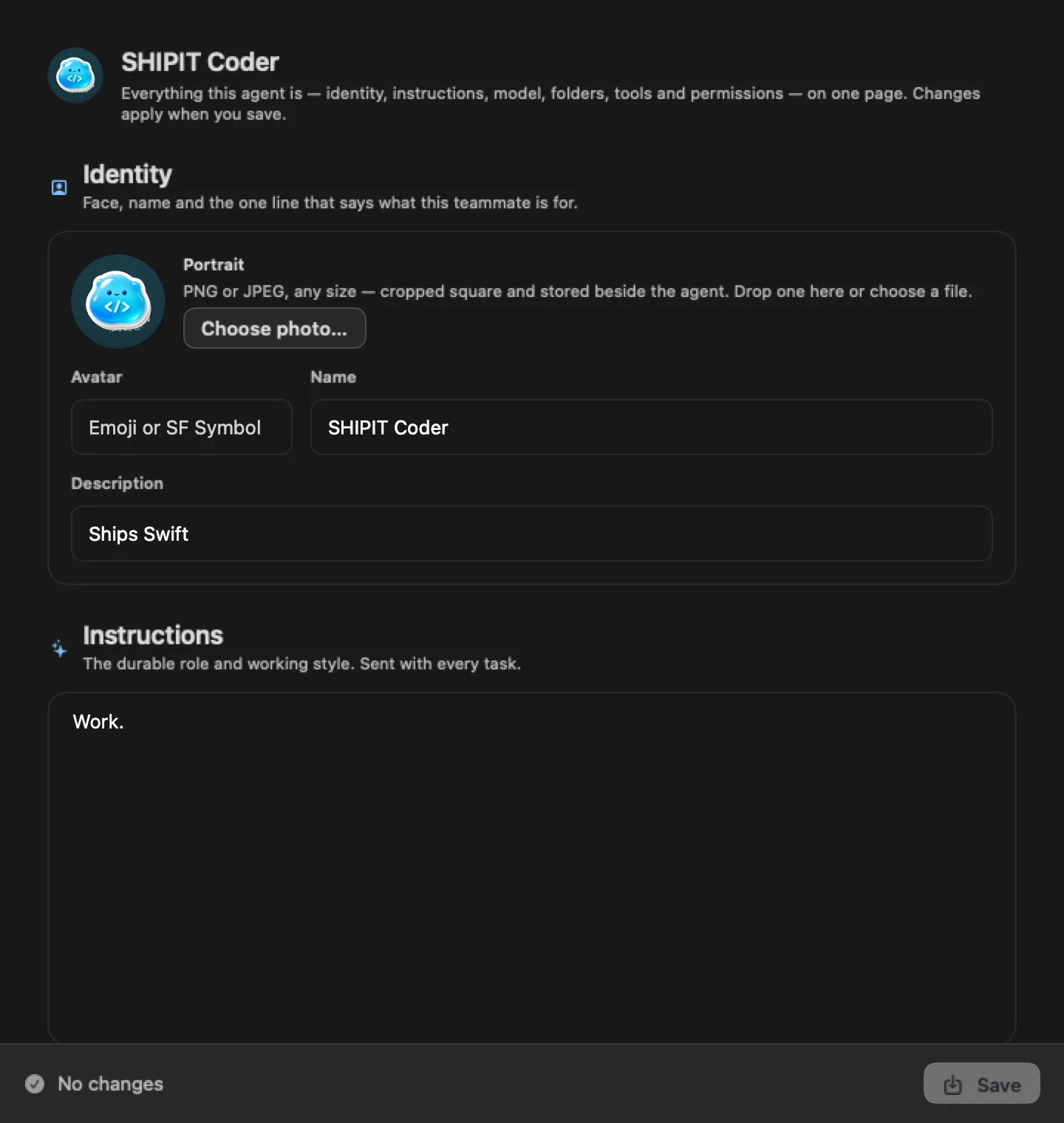
In a teammate's Settings tab the model sits next to its instructions and permissions. Changes apply when you click Save.
More about the models on the Models page.
Tips
- For routine work a lighter model or lower effort is enough, and your limits last longer.
- Use high effort for hard jobs: architecture, a tricky bug.
Questions
Why does a chat use a different model than Settings?
Settings set the default for new agents. In a chat you can pick another model, and it applies to that chat.
Next
- Usage and limitsThe Dashboard shows how much is left in each subscription window and when it resets, so you do not hit a limit mid-task.
- Approvals and Ask before actingYou decide what an agent does on its own and what waits for your yes. Here is where to set it.
- Run several agents at onceBy default SHIPIT runs one agent turn at a time. Here you turn on parallel work and set a cap.