A website in SHIPIT: from questions to publishing
You answer a few simple questions, an agent builds the site while you watch, and SHIPIT shows it next to the chat. At the end you can put the site online for free.
-
01Pick Website on the Start screen
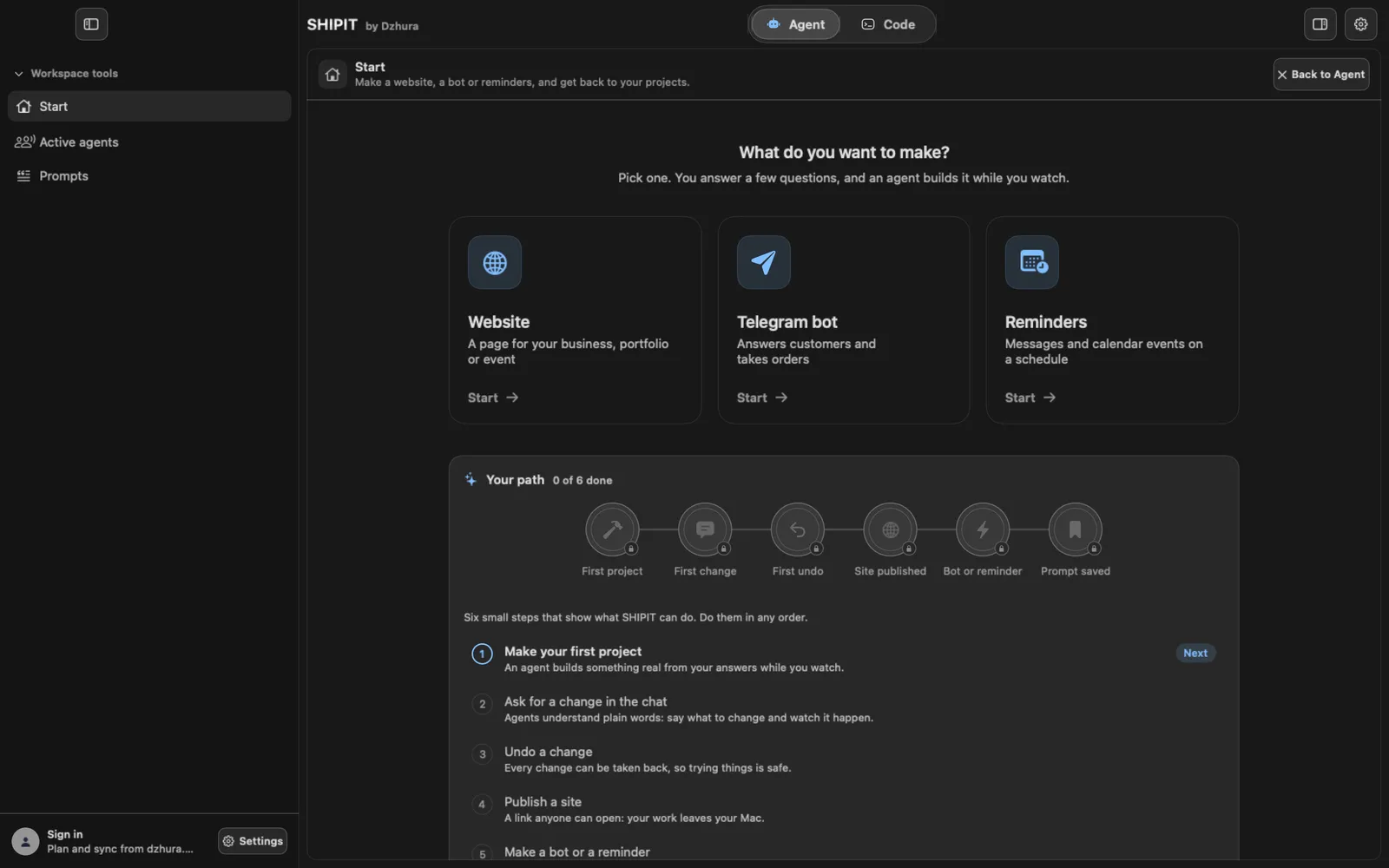
Open Start in the sidebar and click the Website card. The builder opens under Prompts › Make.
A Beginner sees the same choice at the end of the first-run setup: the First step screen, the Website card and Open the builder.
-
02Answer the builder's questions
The builder asks one thing at a time: Pick a design (100 ready styles), What kind of site?, What is it about?, What should a visitor do?, Which sections?, How should it look? and Site language.
Write it like you would to a friend. You can leave a field empty: the agent marks it, and you fill it in later.
-
03Build it in SHIPIT
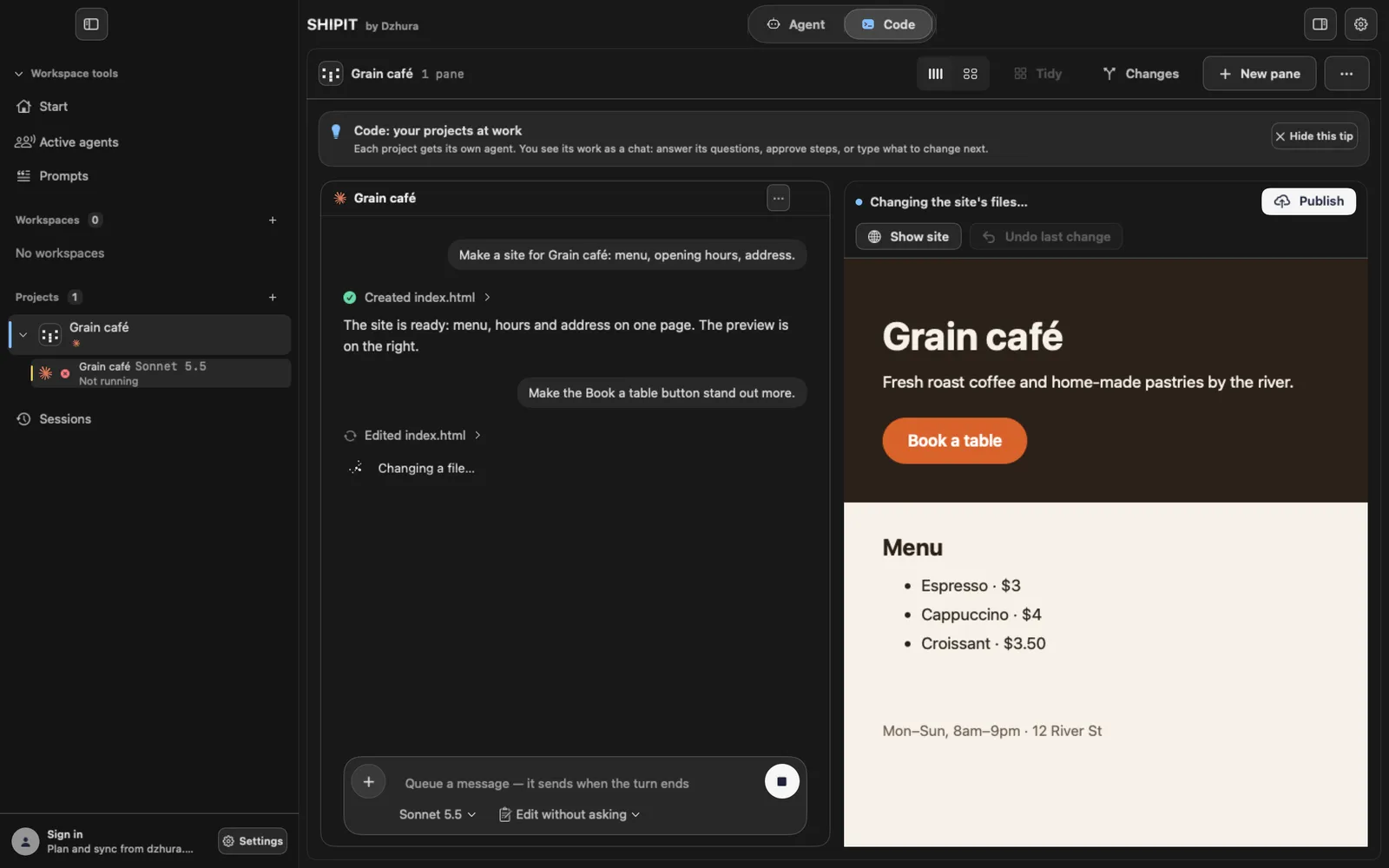
At the end, press Build it in SHIPIT. If this Mac has both Claude Code and Codex, a Who builds it choice sits next to it.
SHIPIT makes a folder
~/SHIPIT/name, puts the task intoBRIEF.mdthere and opens the project in the Code tab: on the left a chat with the agent, which already has the task, on the right the site itself.TipA second café with the same name never lands in the first: SHIPIT makes a new folder ending in -2.
-
04Watch the site appear
Above the preview, one plain sentence says what the agent is doing right now, for example Changing the site's files…. Until there is a page, it reads The site appears here as soon as the agent makes index.html. After that the preview reloads by itself whenever the files change.
Show site opens it in your browser. If the agent started a local server, Show live preview appears next to it.
-
05Ask for changes in plain words
Type in the chat what to change, for example: “Make the Book a table button stand out more.” The agent changes the files and the preview on the right reloads.
When the agent is done, the line at the top reads Done. Ask for the next change in the chat.
-
06Undo the last change
After every agent reply, SHIPIT remembers the state of the site on its own. Undo last change puts the site back as it was before the agent's last change. While the agent works, the button is off.
If files were changed outside SHIPIT, it first asks Undo changes made outside SHIPIT? and names those files. Undo runs on Git: if Git is not installed on the Mac or the folder has its own Git, undo is off.
-
07Publish for free
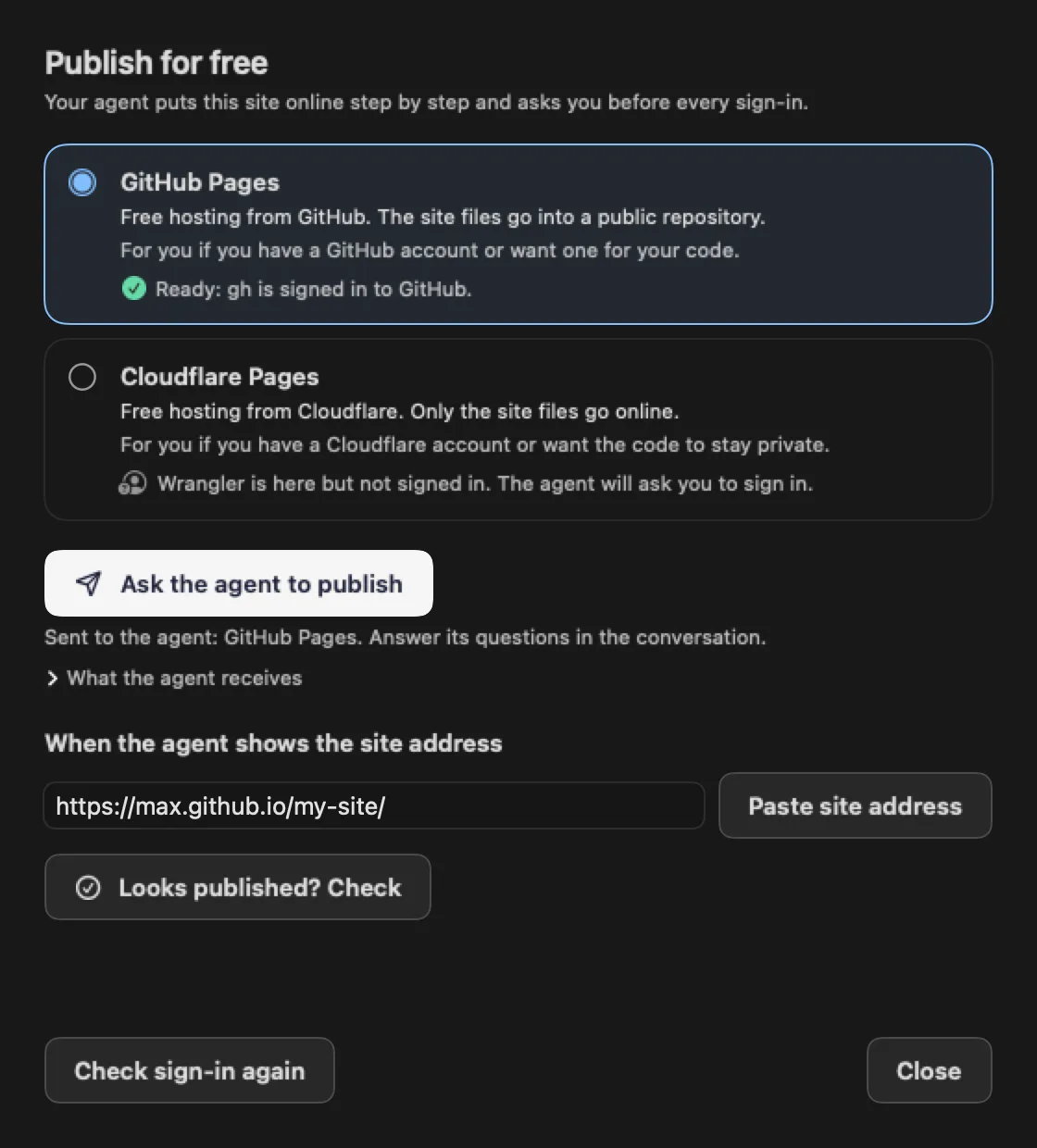
Press Publish at the top right. Pick GitHub Pages (the site files go into a public repository) or Cloudflare Pages (only the site files go online). Under each option you see whether its tool is ready on this Mac.
Ask the agent to publish sends the steps to the agent as an ordinary message that you see in the chat. The agent asks you before every sign-in.
TipOpen “What the agent receives” to read that message before you send it.
-
08Check the address
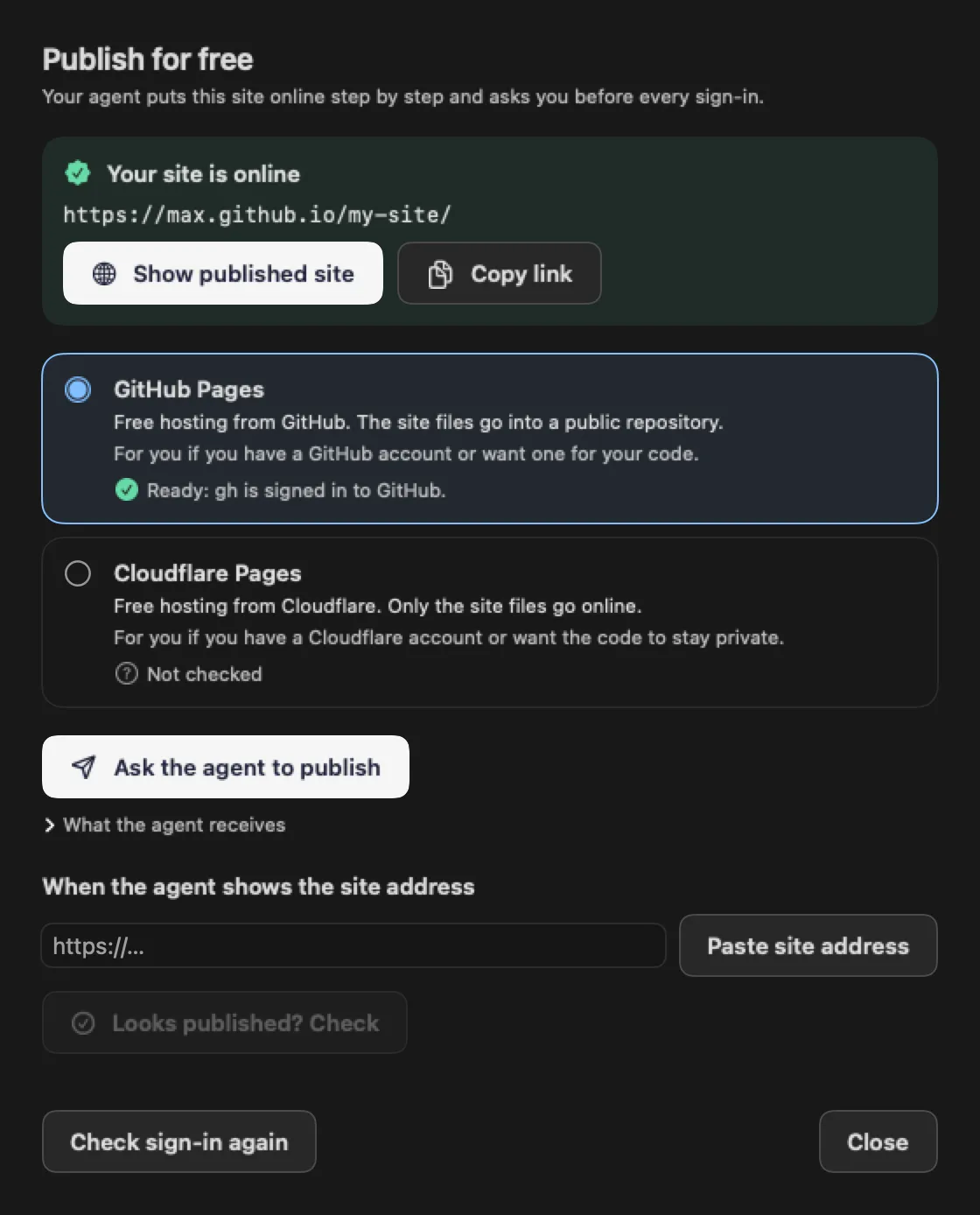
When the agent shows the site address, put it into the field under When the agent shows the site address (there is a Paste site address button) and press Looks published? Check. A new site can take a few minutes to answer.
Once the site answers, Your site is online appears with Show published site and Copy link, and the button at the top turns into Published.
Tips
- Back to the site later: Start › My projects › Open.
- The same builder runs in a browser at dzhura.app/build. There it gives you a prompt to copy.
- One change at a time: it is easier to see the result and to undo what you do not like.
Questions
Where are the site files?
In the SHIPIT folder in your home folder, one folder per project. BRIEF.md next to the code holds the task the agent received.
I am on Pro and there is no preview next to the chat.
The screen with the preview, Show site and Undo last change is there on Beginner and Intermediate. Pro opens the project in ordinary panes.
What do I need to publish?
A GitHub or Cloudflare account. If the tool is not on the Mac yet or you are not signed in, the agent helps and asks before every sign-in.
Next
- A Telegram bot in SHIPIT: where to startSHIPIT turns your answers into a task for the bot and opens a project where an agent writes the code. The token, testing and where the bot lives are covered in detail by the Telegram guides.
- Reminders and automations in SHIPITA morning summary, birthday greetings, a message before a calendar event. You describe when and what, and the agent picks the simplest way that needs no server of your own.
- Levels and tabs: Beginner, Intermediate, ProThe level decides how much SHIPIT shows at once. Nothing is locked: the level and the tabs change any time.