Your first task for an agent
You will create an agent, give it a folder and send its first task. It takes a few minutes.
-
01Create an agent
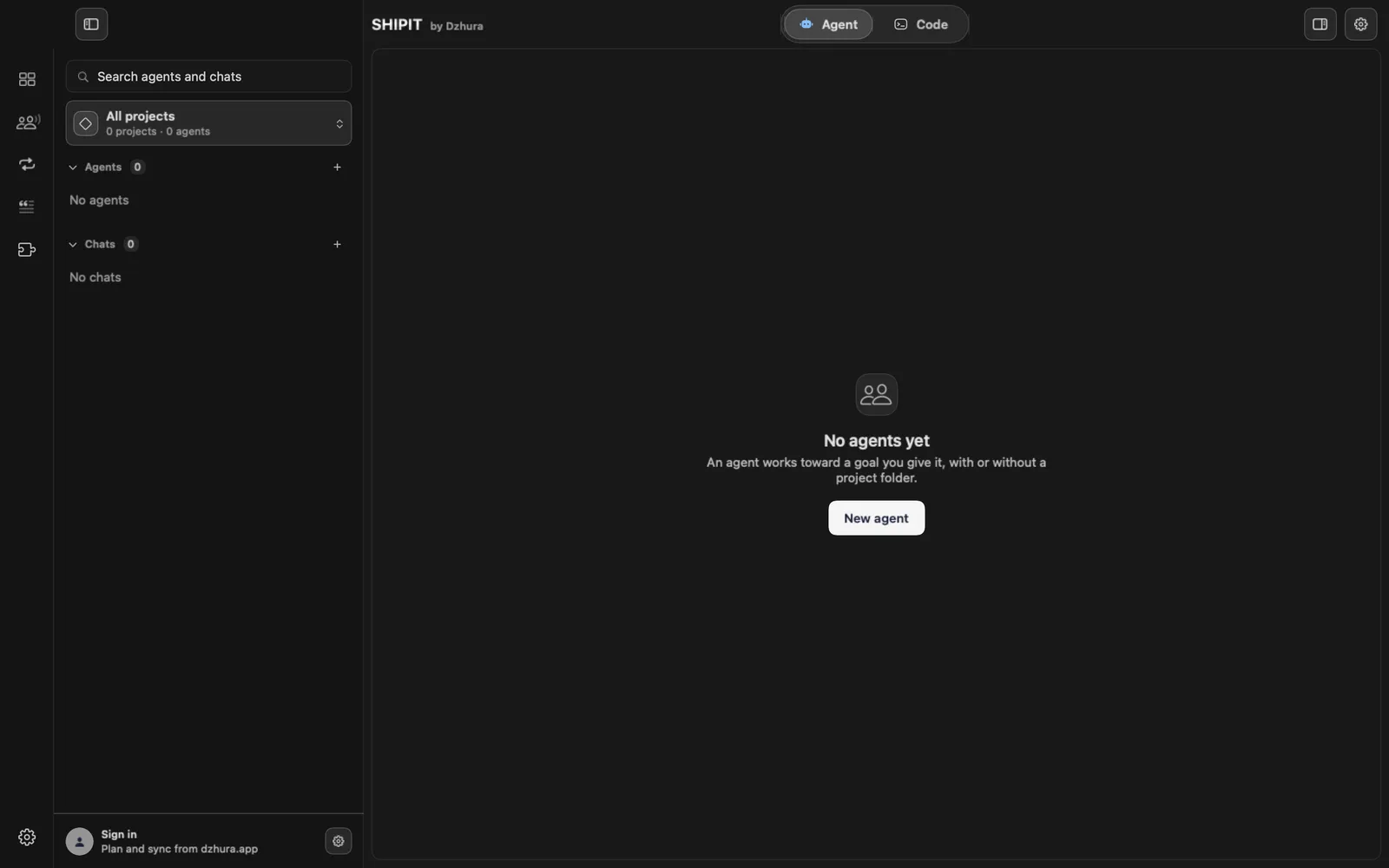
In the Agent tab, click New agent.
-
02Describe the job in one sentence
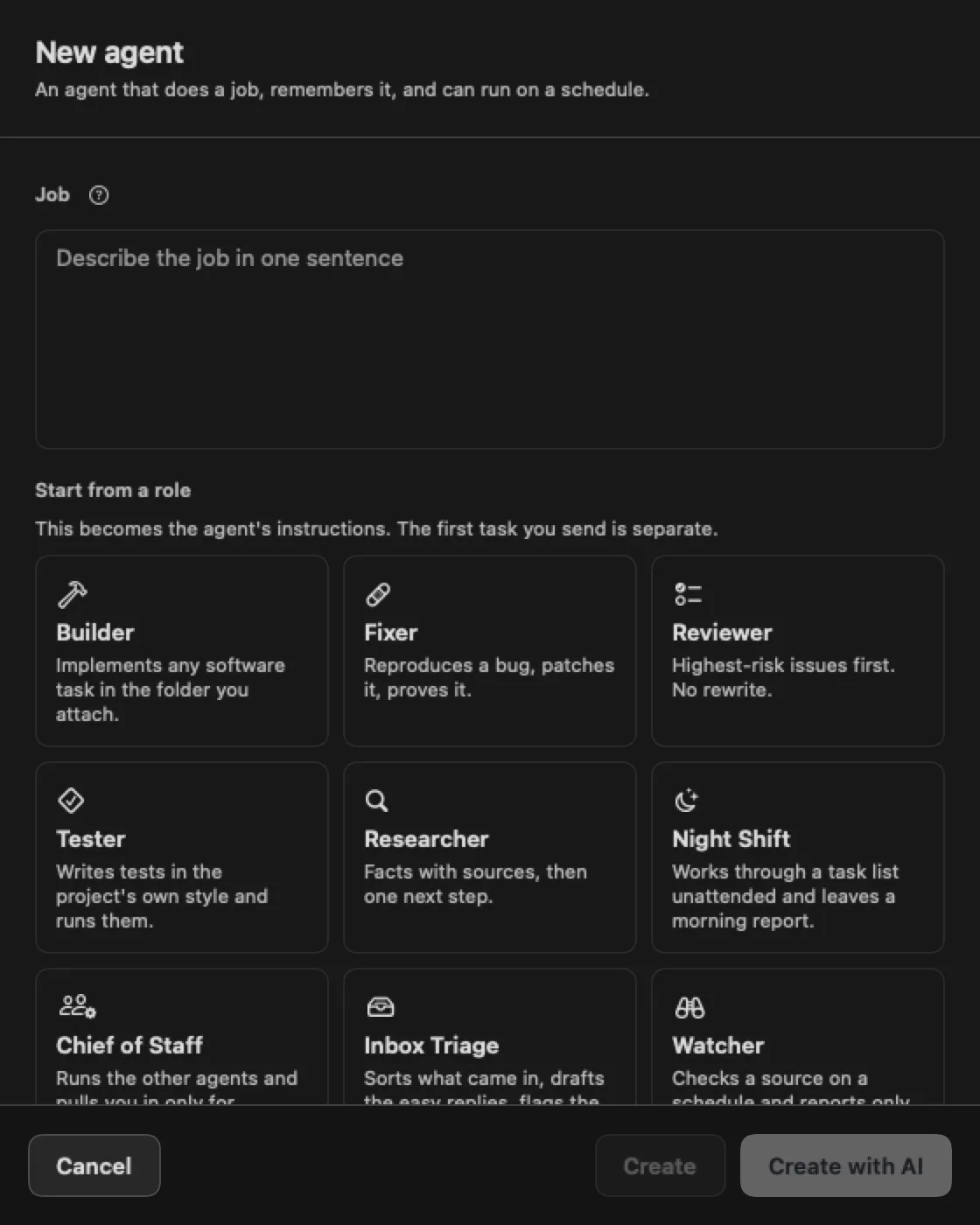
In the Job field, write what the agent should do. For example: watches the site for errors and suggests fixes.
-
03Pick a role if you like
Start from a role gives ready instructions: Builder, Fixer, Reviewer, Tester, Researcher and more.
The role becomes the agent's instructions. The first task you send is separate.
-
04Create it
Create saves what you entered. Create with AI fills in a name and instructions from the job you typed. Nothing is saved until it succeeds.
-
05Give it a project folder
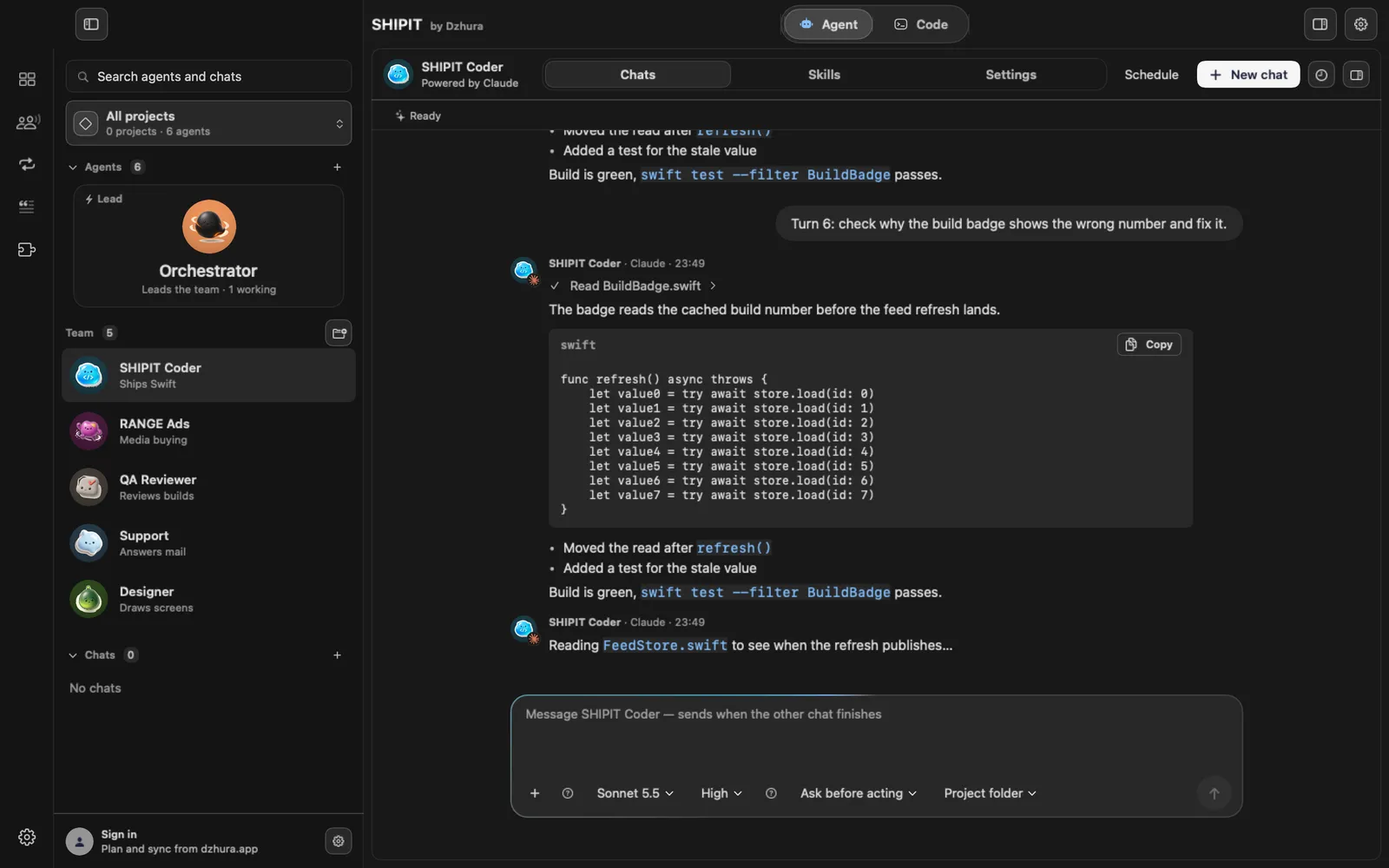
Click Project folder and Choose folder. The agent works with the files in that folder.
The folder is optional: the agent can help without one.
-
06Send the task
Type what needs doing in the field at the bottom and send it. Describe the result you want, not the steps.
-
07Answer its questions
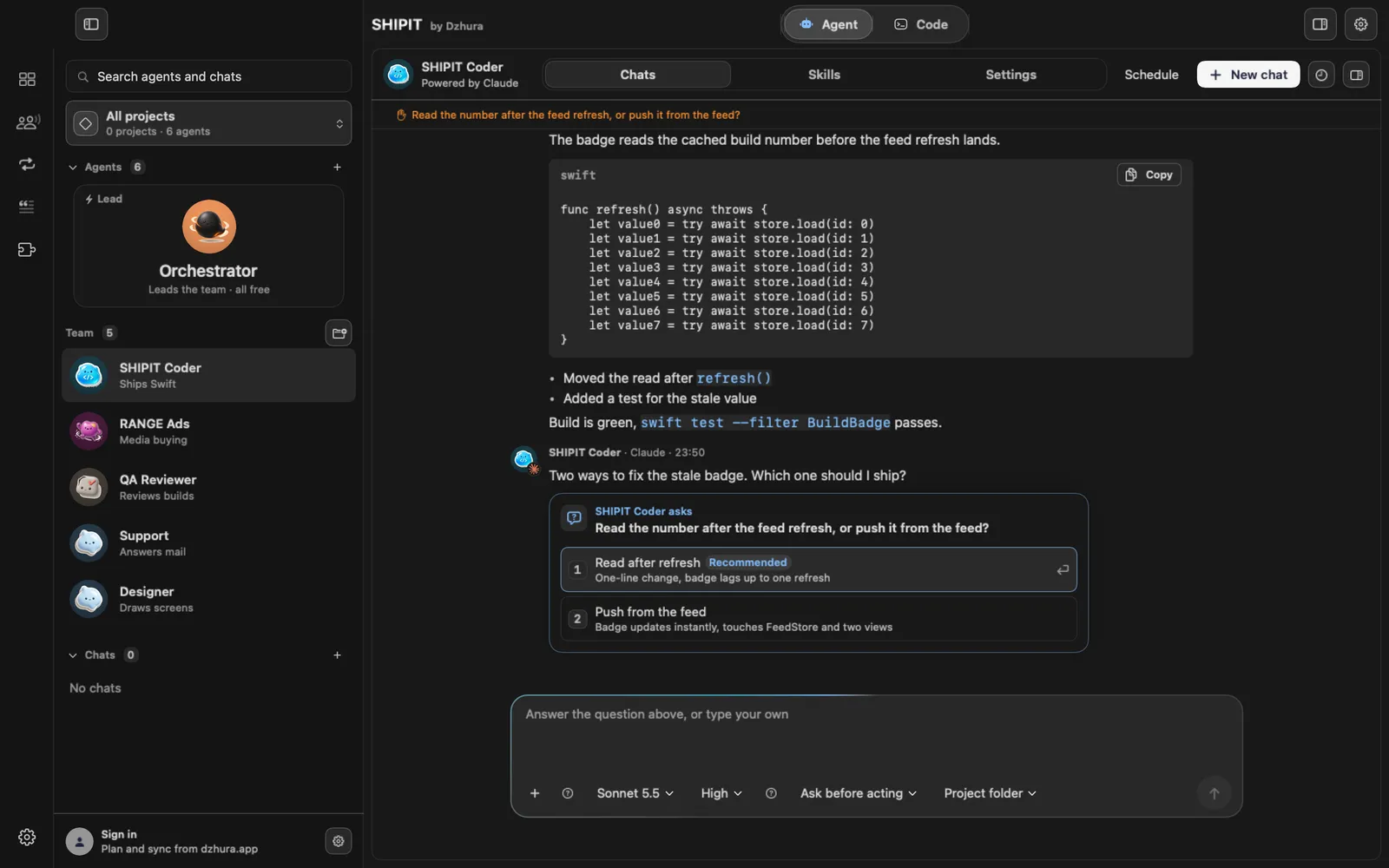
The agent may ask how you want something done. Pick an option or type your own.
With Ask before acting it asks for approval before it changes files or runs tools.
Tips
- One clear sentence in Job beats a long wish list.
- You can change the role or instructions later in the agent's Settings tab.
Questions
Can I skip the project folder?
Yes. An agent works with or without a folder. You need one when it should read or change your files.
Next
- Attachments and contextShow the agent what to work with: a file, an image, a folder or another conversation. It all goes through + in the field.
- Approvals and Ask before actingYou decide what an agent does on its own and what waits for your yes. Here is where to set it.
- Models and effortYou can set model and effort per chat, per teammate and as defaults. What each model is good at is explained on the Models page.