The browser pane
A browser pane shows a page next to the agent and the terminal. Handy for looking at a site you have just built.
-
01Open a browser
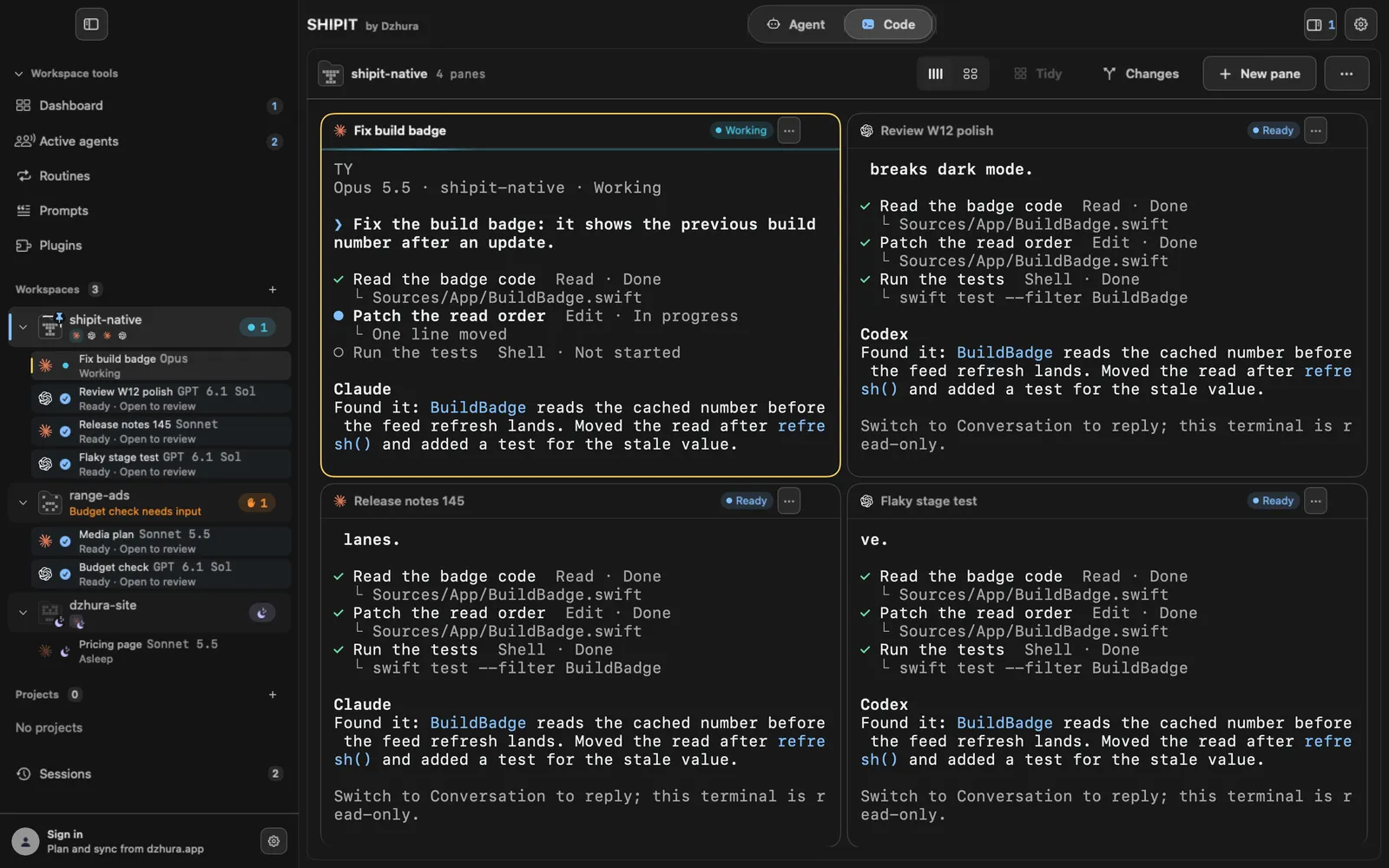
Click New pane and pick Browser at the bottom of the menu. The pane opens on Google search or on this pane's last address.
-
02Enter an address
Type the address in the field at the top and press Enter or Go. If you leave out the scheme, SHIPIT adds https://.
For a local server, type the full address:
http://localhost:5173. -
03Back, forward, reload
The arrows left of the address are Back and Forward, the round arrow is Reload. The arrows are active only when there is somewhere to go.
-
04A browser next to an agent
In an agent pane's menu, the three dots in its header, pick Open browser beside. The browser opens next to that pane.
-
05The page stays put
Expand or collapse the pane: the page, history and scroll position stay where they were.
The Browser row in the New pane menu shows the last address, for example
Last: localhost:5173.
Tips
- For a local server always type http://, otherwise SHIPIT tries https.
- Keep the browser next to the agent that builds the site: after its changes, click Reload.
Questions
Why does localhost not open?
Check that the address starts with http:// and that the server is running in a terminal.
Will the page reset if I expand the pane?
No. The page, history and scroll position are kept.
Next
- The New pane menuOne menu opens any pane: a terminal, a coding agent or a browser. You see where it lands before you click.
- Pane layoutsSeveral panes on one screen can be laid out the way you like, and put back in order just as quickly.
- The Claude Code paneClaude Code works in your project folder: it reads code, edits files and runs commands. You steer it from the field at the bottom of the pane.