Pane layouts
Several panes on one screen can be laid out the way you like, and put back in order just as quickly.
-
01Columns or grid
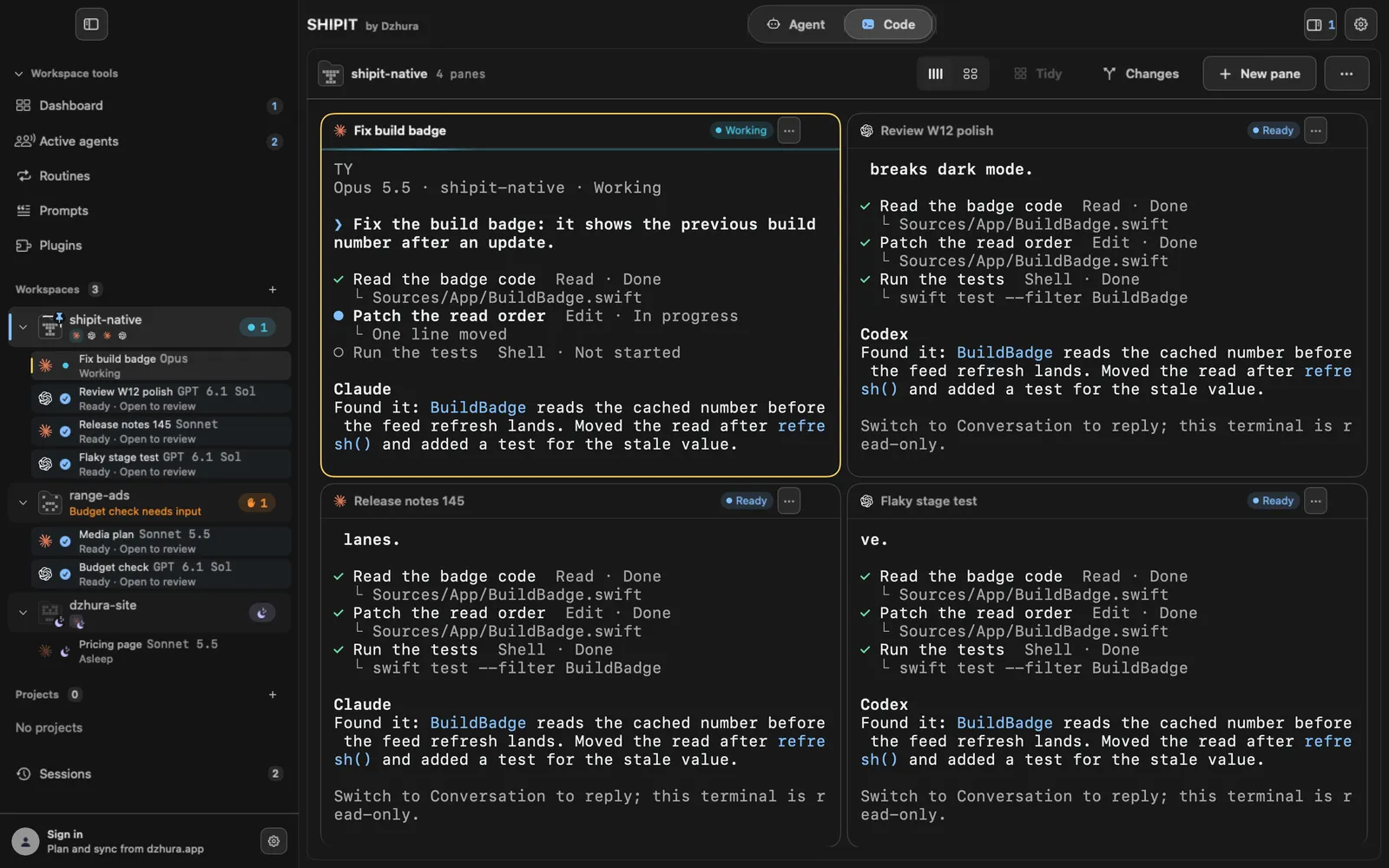
The switch at the top right has two modes: Columns and Grid. Hover the other mode and the board shows how it would look.
It is the same setting as Pane layout in Settings.
-
02How the grid works
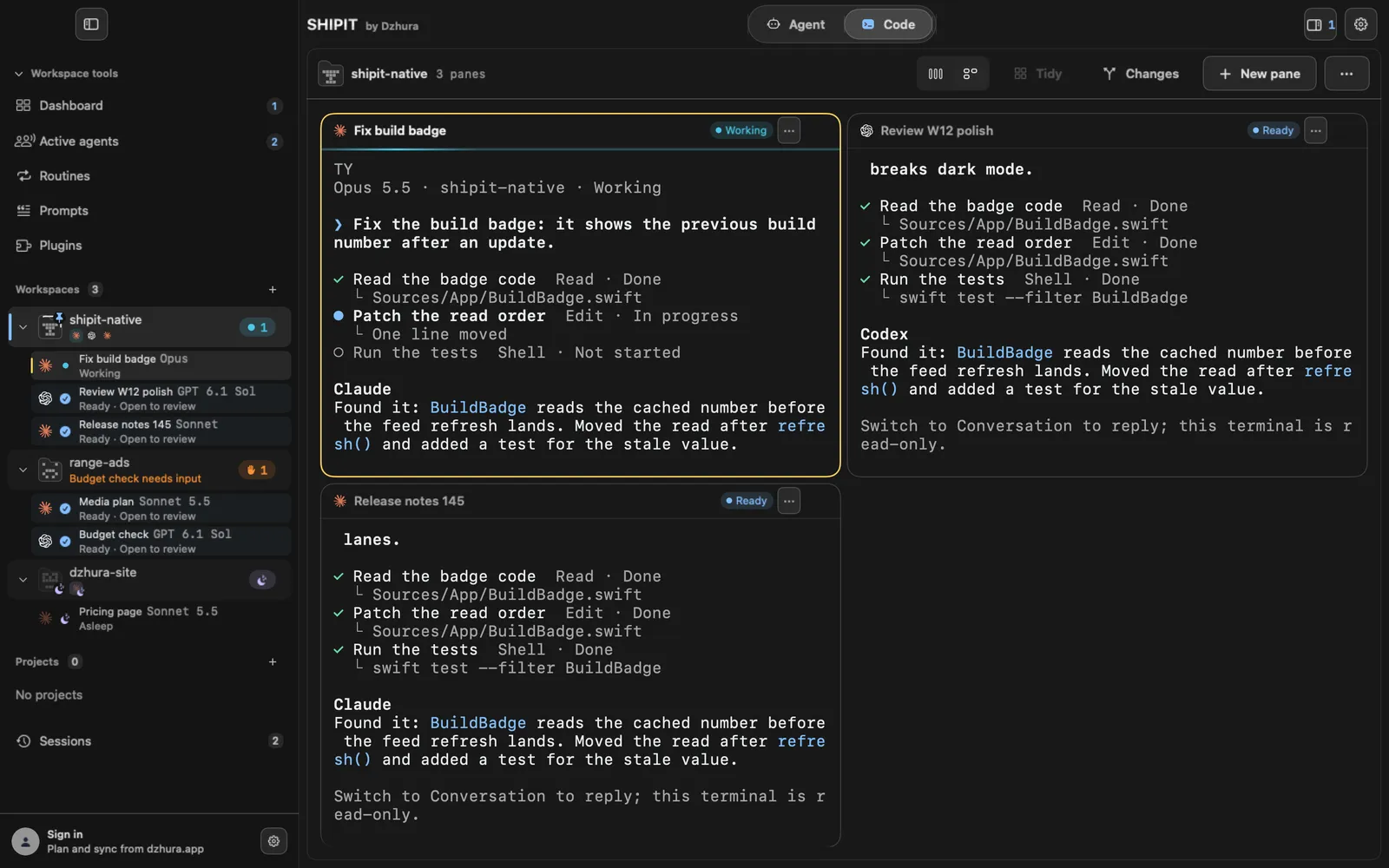
Grid lays out three or four panes 2×2. In columns, panes wrap into rows when a terminal gets narrower than 34 columns.
-
03Tidy the panes
After you resize by hand, click Tidy and every pane gets an even share. Hover first to preview the result.
When the button is off, its hint says Panes are already even.
-
04The active pane
The amber frame marks the pane you are working in. Typing and the Changes button apply to that pane.
-
05One pane over the whole screen
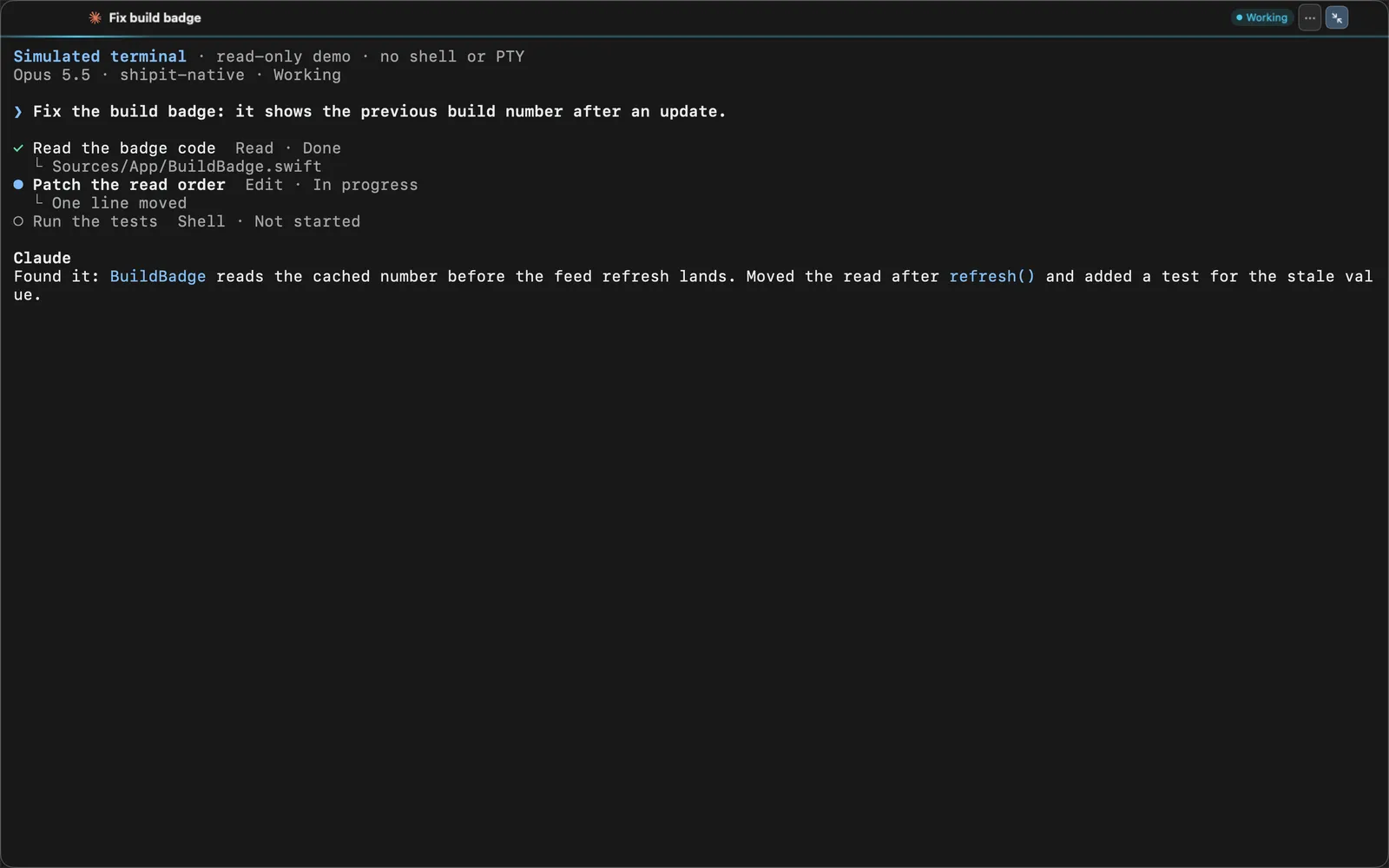
In the pane menu, the three dots in its header, pick Expand pane or press ⌘↩: the pane fills the board. Full window spreads it over the whole window.
To go back, click the button at the top right of the pane or press ⌘↩ again.
-
06Shelve a pane
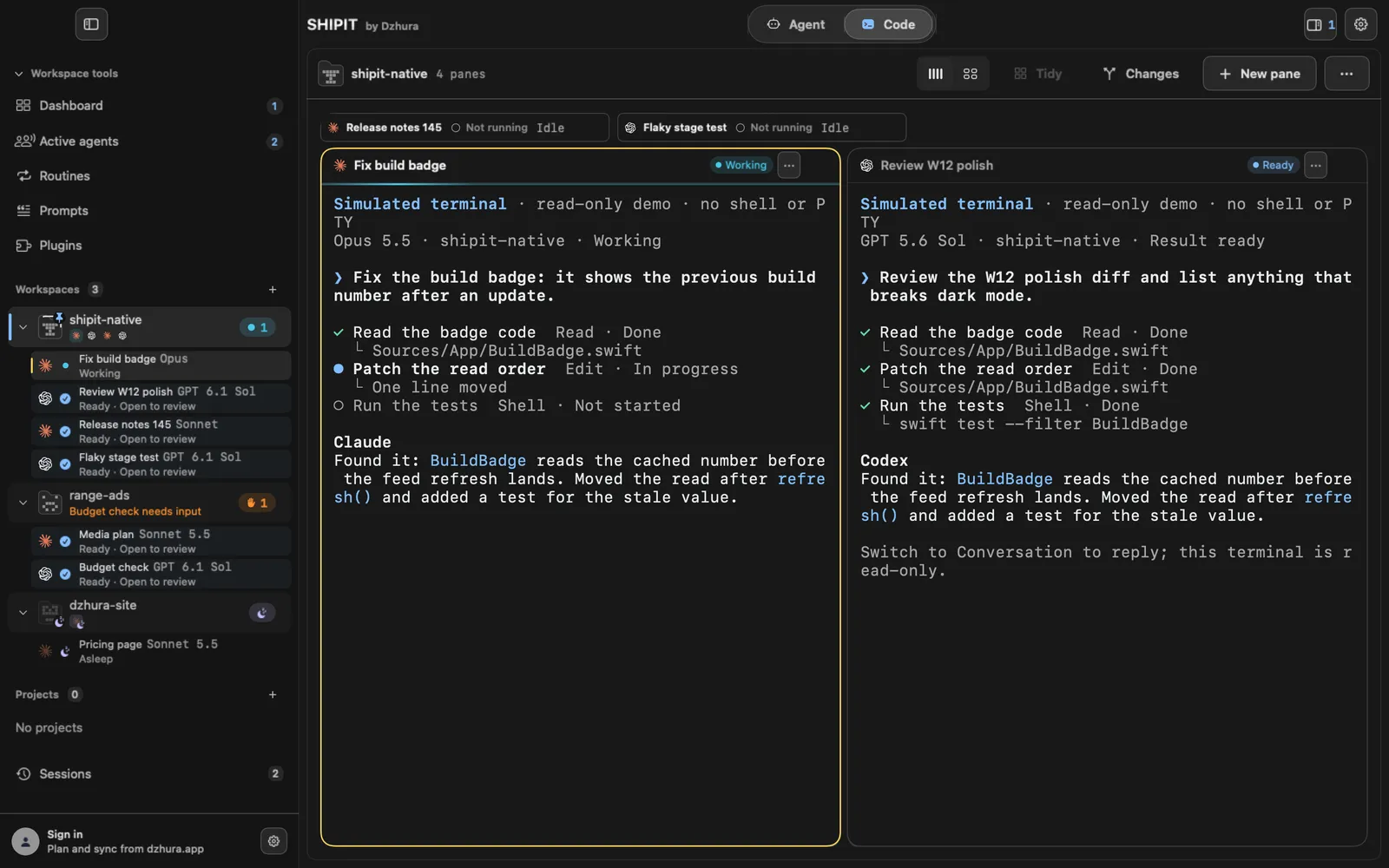
Shelve pane (⌘⇧M) takes the tile off the grid while its process keeps running. Shelved panes sit in a row above the board.
Click a pane in that row to restore it to the grid.
Tips
- When there are too many panes, shelve the ones that are waiting: you get the space back and the work goes on.
- ⌘↩ works both ways: expand a pane and bring it back.
Questions
Does shelving stop the process?
No. The tile leaves the grid and the process inside keeps running.
Why is Tidy greyed out?
The panes are already even, there is nothing to tidy.
Next
- The New pane menuOne menu opens any pane: a terminal, a coding agent or a browser. You see where it lands before you click.
- Workspaces and projectsBy the end you have a workspace with panes for one project, and you know where to find it.
- The Claude Code paneClaude Code works in your project folder: it reads code, edits files and runs commands. You steer it from the field at the bottom of the pane.